To add a new vehicle to the Fleet Cloud follow the steps below.
Step 1: Log into the VAIRKKO Platform
Step 2: Access the Administrative area by clicking 'ADMIN' in the upper right-hand corner.
Step 3: Access 'Manage Fleet' from the Administrative Toolbar
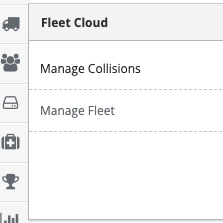
Step 4: Select Manage Vehicles from the in-app menu.
Step 5: Select 'New Vehicle' and enter the vehicle name/number.
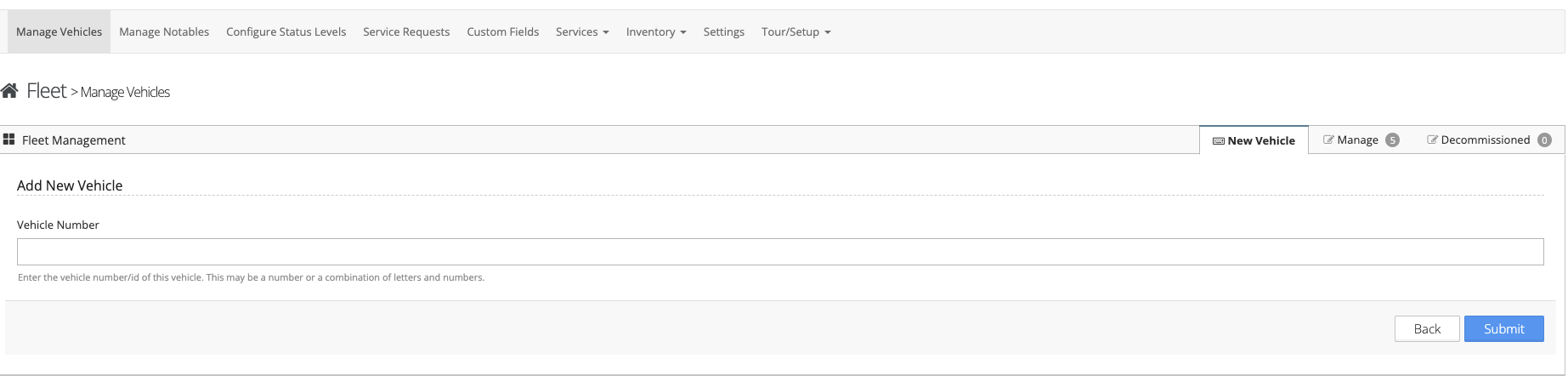
Step 6: Follow the on-screen prompts to configure your vehicle information.
Additional Information

- The vehicle can be updated from the 'Vehicle' tab.
- The vehicle's status can be configured from the 'Satus' tab.
- The 'Mileage' tab allows you to update the mileage of the vehicle.
- Notable information can be viewed and entered from the 'Notables' tab.
- Files can be uploaded and viewed from the 'Files' tab.
- The 'Records' tab allows you to enter or view services records.
Was this article helpful?
That’s Great!
Thank you for your feedback
Sorry! We couldn't be helpful
Thank you for your feedback
Feedback sent
We appreciate your effort and will try to fix the article