Adding/Managing Stock Rooms
Step 1: Log in to the Vairkko platform.
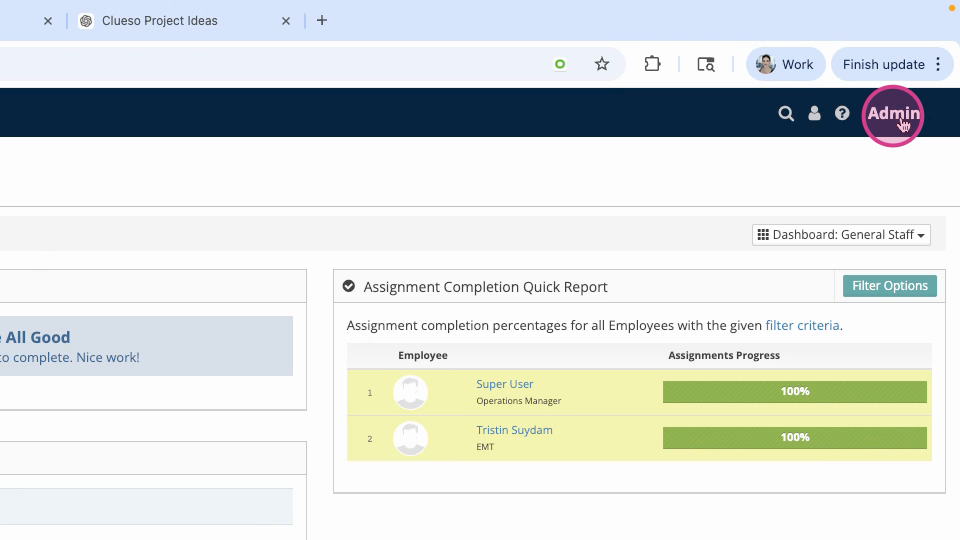
Click admin in the upper right-hand corner to access the administrative area.
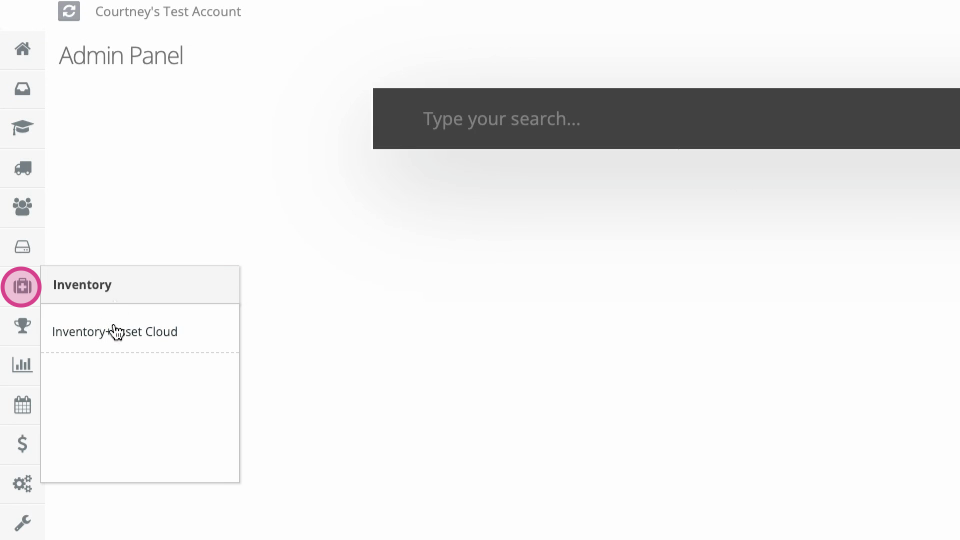
Step 2: From the administrative toolbar, select Inventory & Asset Cloud.
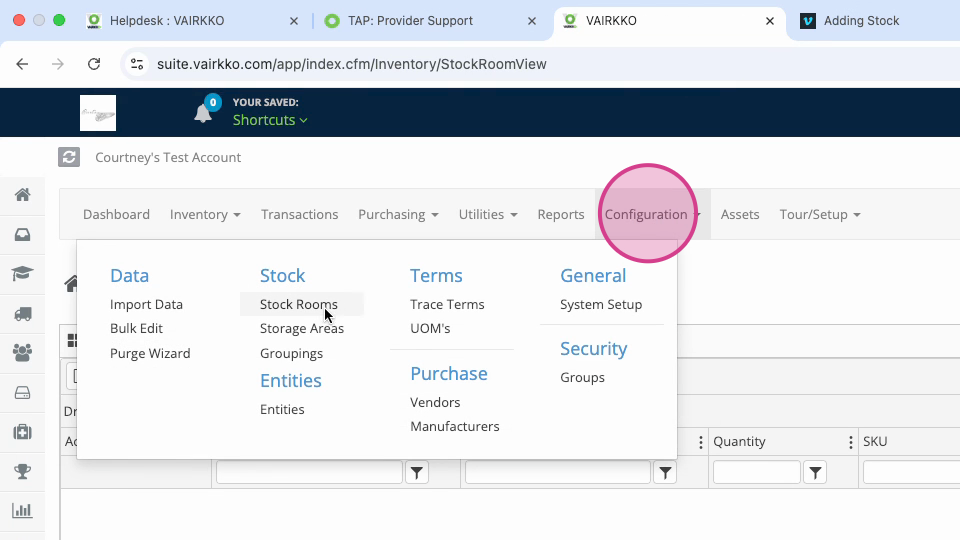
Step 3: Open the Configuration menu at the top and click Stock Rooms.
Step 4: Create a New Stock Room by naming it and selecting the type.
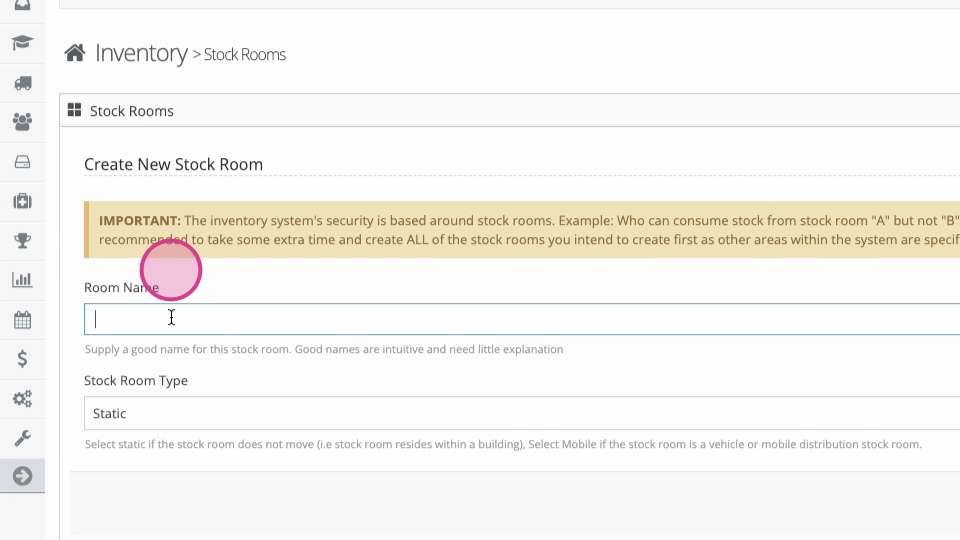
Step 5: Follow the on-screen prompts. Fill in any additional information as necessary.
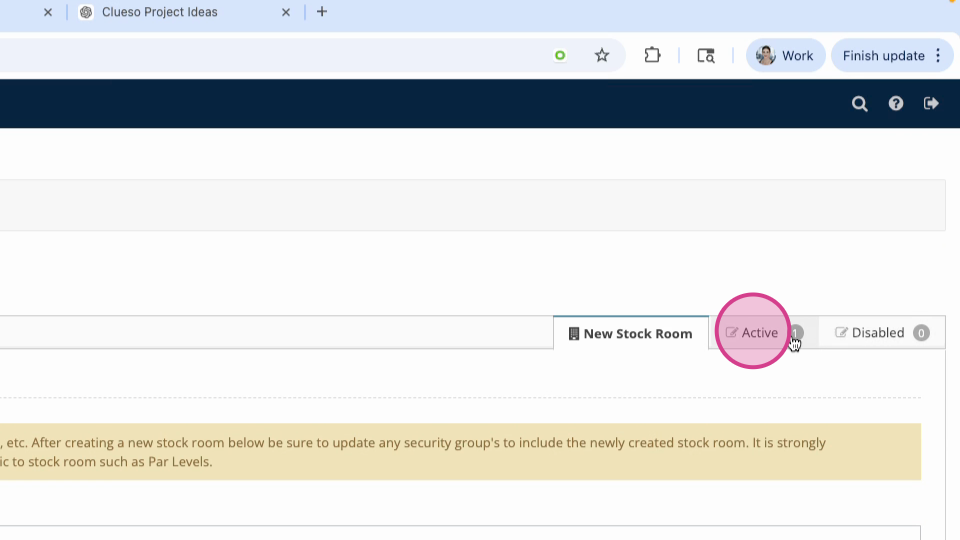
Step 6: To manage your stack rooms, return to Configuration > Stock Rooms, then use the Active tab.
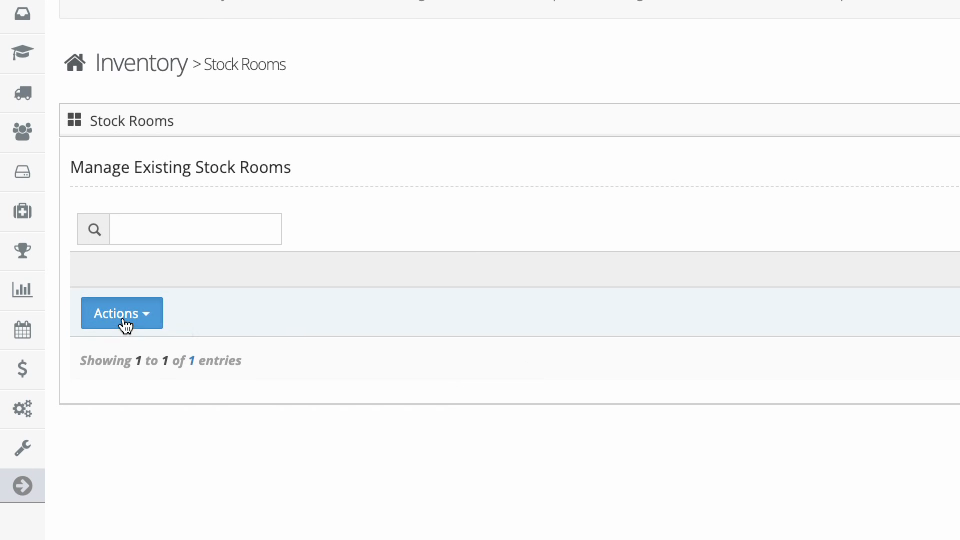
Step 7: Use the Actions button to edit or disable a stock room.
Additional Information:
If you add a new stock room after setting up security groups, remember to add it into the appropriate security group area in the inventory system.