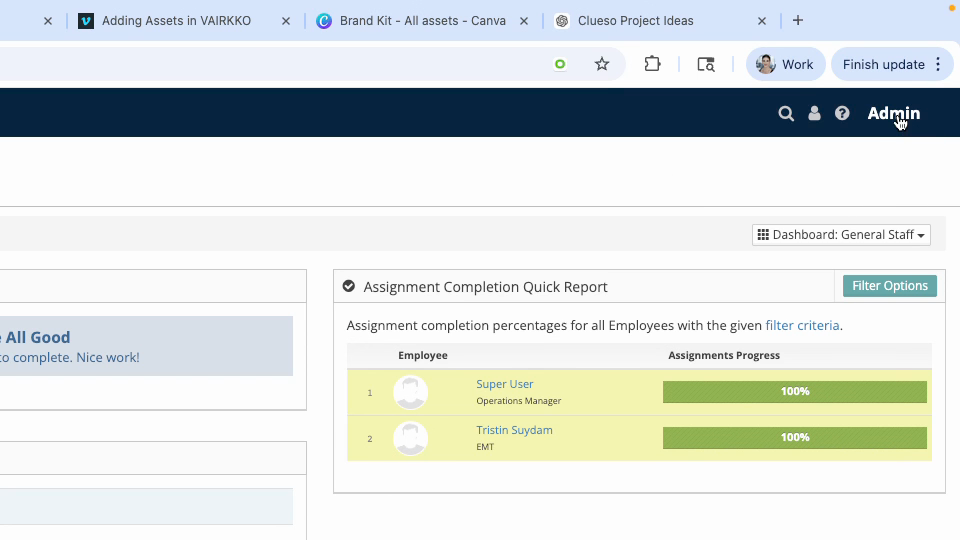
Step 1: Log in to the VAIRKKO platform and enter the administrative dashboard.
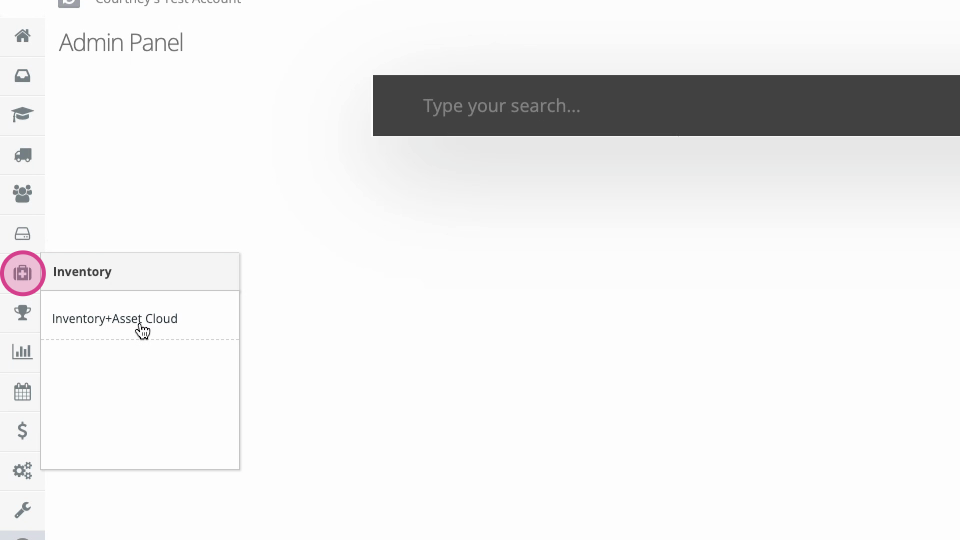
Step 2: Open the Inventory and Asset Cloud from the admin toolbar.
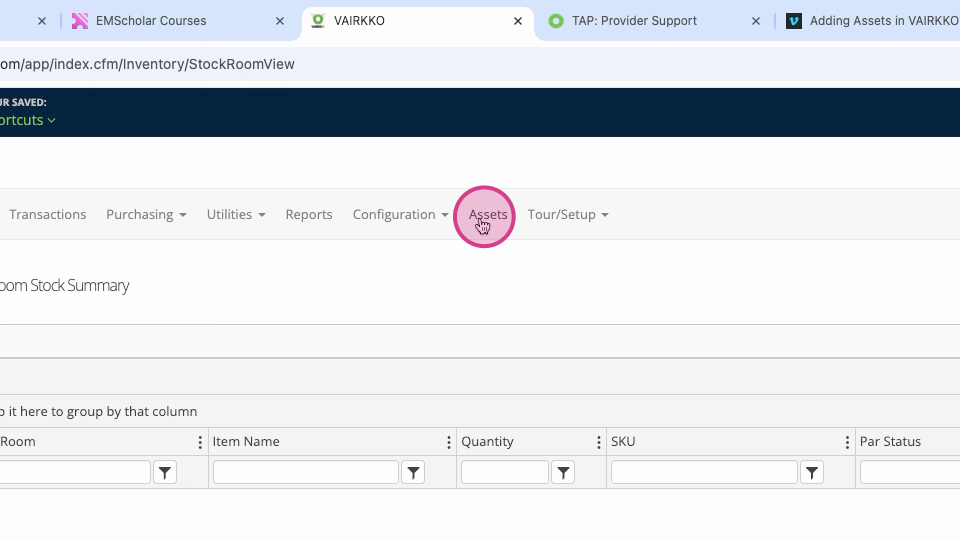
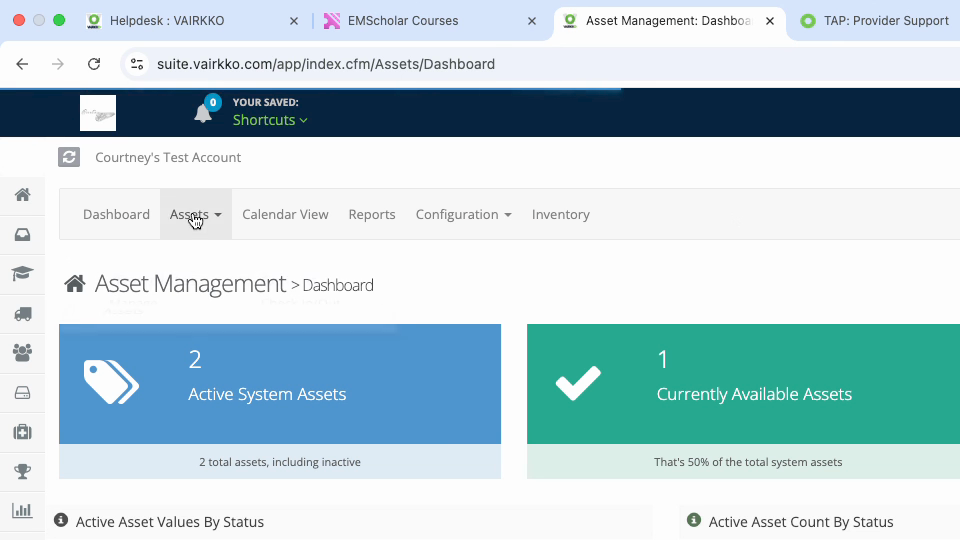
Step 3: At the top of the page, click Assets.
Step 4: From the Assets dropdown, click Manage Assets. Make sure the Manage tab is highlighted to view your asset list.
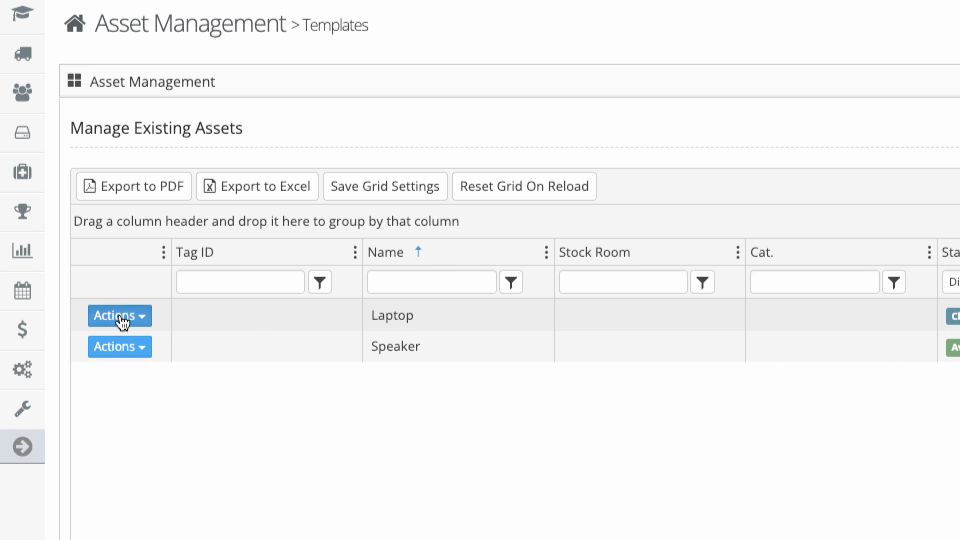
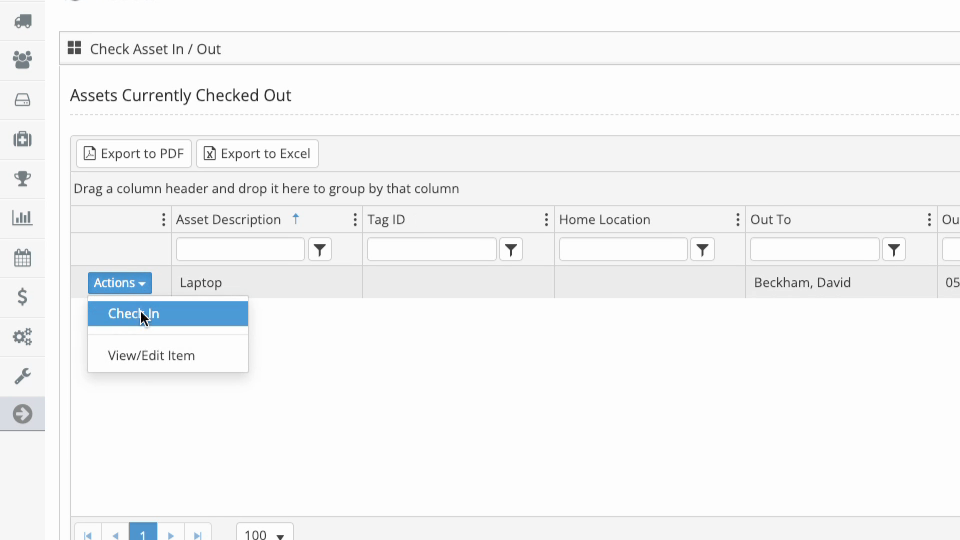
Step 5: To check in an asset, find it in the list. Click the Actions button next to the asset, then select Check-In.
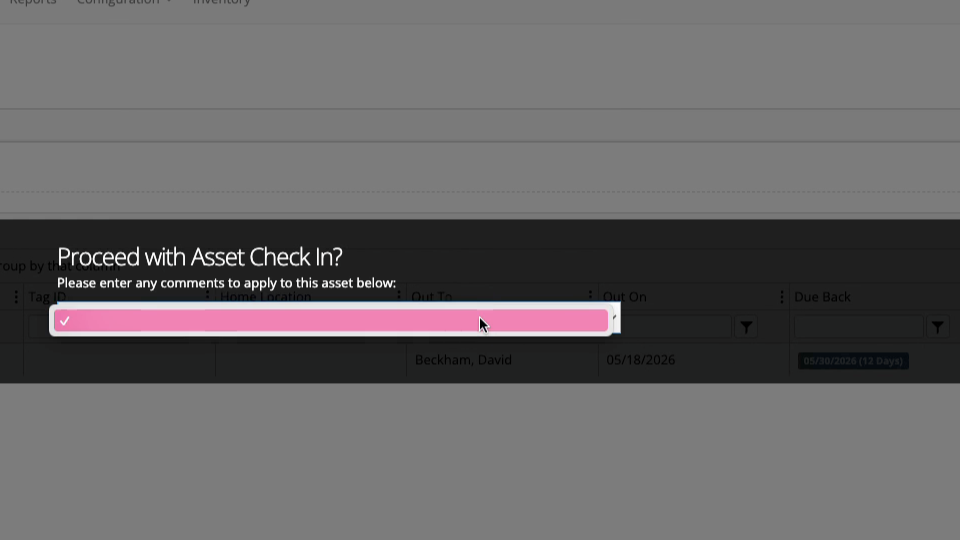
Step 6: Add any comments about the check-in if needed, then save.
Step 7: To check out an asset, go to the Check-Out tab.
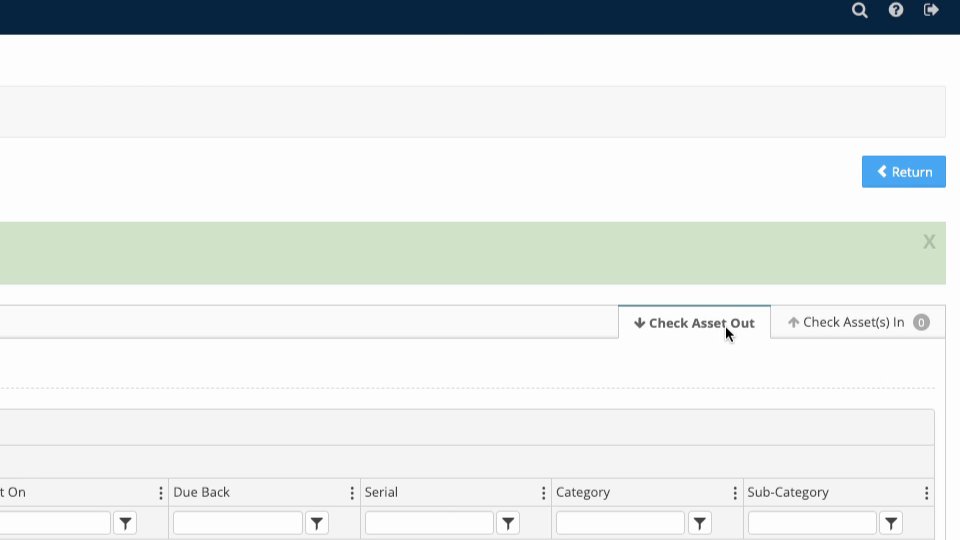
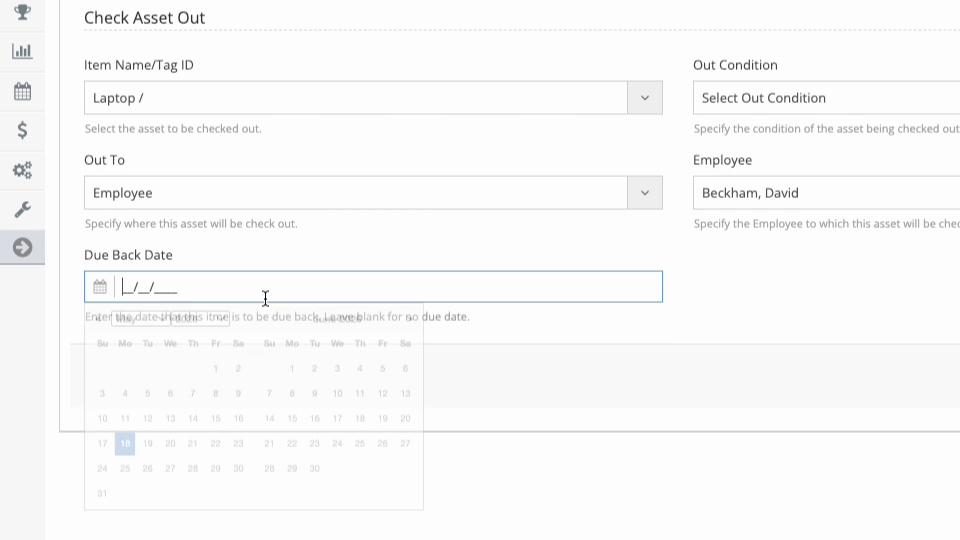
Step 8: Select the asset, its condition, add any comments, specify to whom it is checked out, and choose the return date.