Fingerprint/Biometric Scanner Model: U.are.U 4500
*Prerequisites needed before setting up your fingerprint scanner:
- Disable or turn off any software that maintains your computer's state (Ex: DeepFreeze or Steady State)
- Disable or turn off any virus protection software or any other software that may scan new files being installed on the computer (this includes Windows Defender)
Section 1: Setting Up the Time Clock
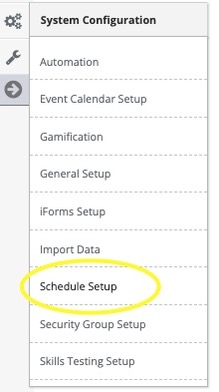
- Select "Schedule Setup" from the System Configuration area.
- Select "Manage Clocks" from the Time Clocks in-app menu option

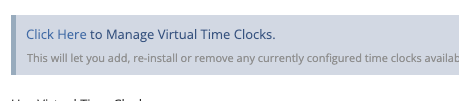
- Select "Click Here" To Manage Virtual Timeclocks
- Select either the 'Add New" tab to install a new timeclock or you can edit an existing timeclock by selecting "Edit Clock" from the Actions Button next to the timeclock you wish to upgrade.

- Once in you're in your Time Clock, select "Fingerprint Biometric (Cross Browser)" from the Primary Authentication Method Dropdown.
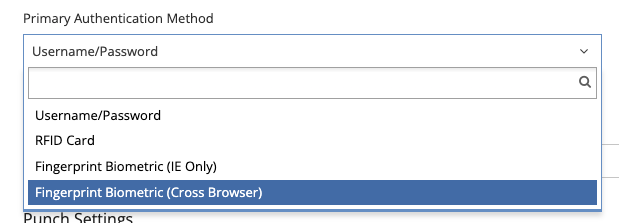
- The Cross Browser Version will ONLY work on the NEXT GEN TIME CLOCK
Section 2: UPGRADING FROM IE ONLY VERSION. (If you are installing the reader for the first time skip to section 3)
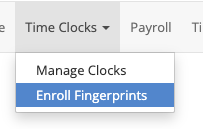
- Select 'Enroll Fingerprints'
- Select install "Digital Persona Lite Client"
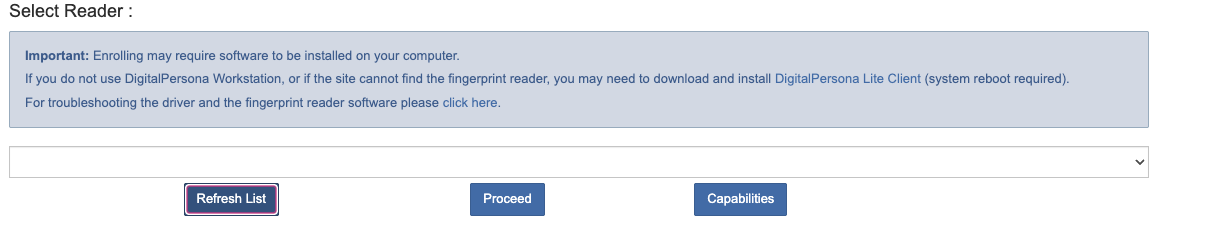
- Install the Digital Persona Lite Client
- Start the InstallShield Wizard and click "Next"
- Accept the Terms and Conditions and select "Next"
- Ensure the installation file is installed on the Program Files then select "Next"
- Select "Typical" for Setup type then select "Next"
- Click "Install"
- Click "Finish"
- RESTART THE COMPUTER
- After the computer restarts, you should now be able to use the fingerprint reader
Section 3: Enrolling your employee's fingerprints in the VAIRKKO System
- Select "Schedule Setup" from the System Configuration area.
- Select "Enroll Finger" from the Time Clocks in-app menu option.
- Download "Digital Persona Lite Client"
- Install the Digital Persona Lite Client
- Start the InstallShield Wizard and click "Next"
- Accept the Terms and Conditions and select "Next"
- Ensure the installation file is installed on the Program Files then select "Next"
- Select "Typical" for Setup type then select "Next"
- Click "Install"
- Click "Finish"
- RESTART THE COMPUTER
- After the computer restarts, return to the Fingerprint enrollment area
- If the appropriate fingerprint reader is not selected nor is it available in the dropdown list select "Refresh List" and then select the reader and Proceed.
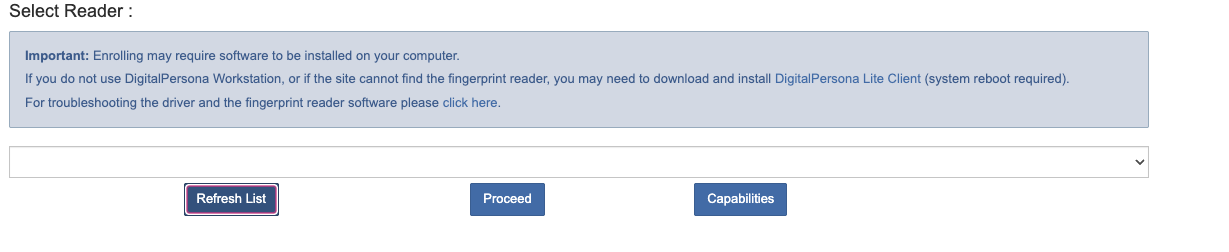
- Follow the on-screen prompts to enroll the employees fingerprints
*Note: If this article was not helpful for you in setting up your biometric/fingerprint scanner, please contact the VAIRKKO Support team for extra help and support. Thank you!