To interact with a scheduled slot follow the steps below.
Step 1: Log into the VAIRKKO Platform
Step 2: Access the Administrative area by clicking 'ADMIN' in the upper right-hand corner.
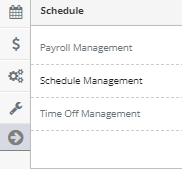
Step 3: Access the 'Schedule Management' from the Administrative Toolbar
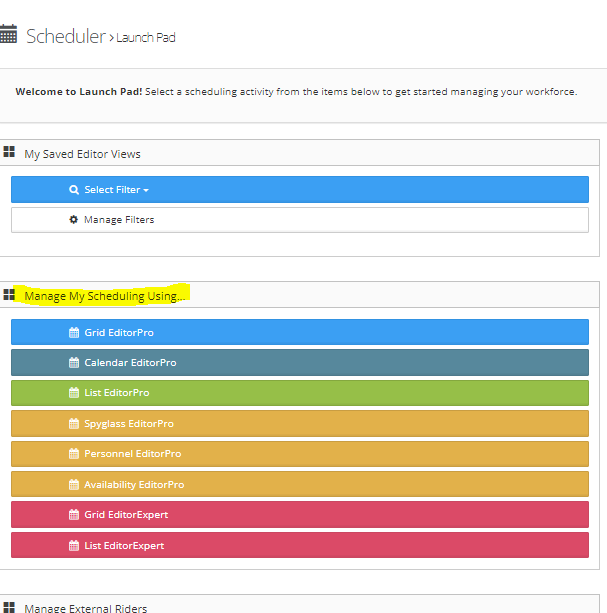
Step 4: Access the schedule by selecting your preferred editor
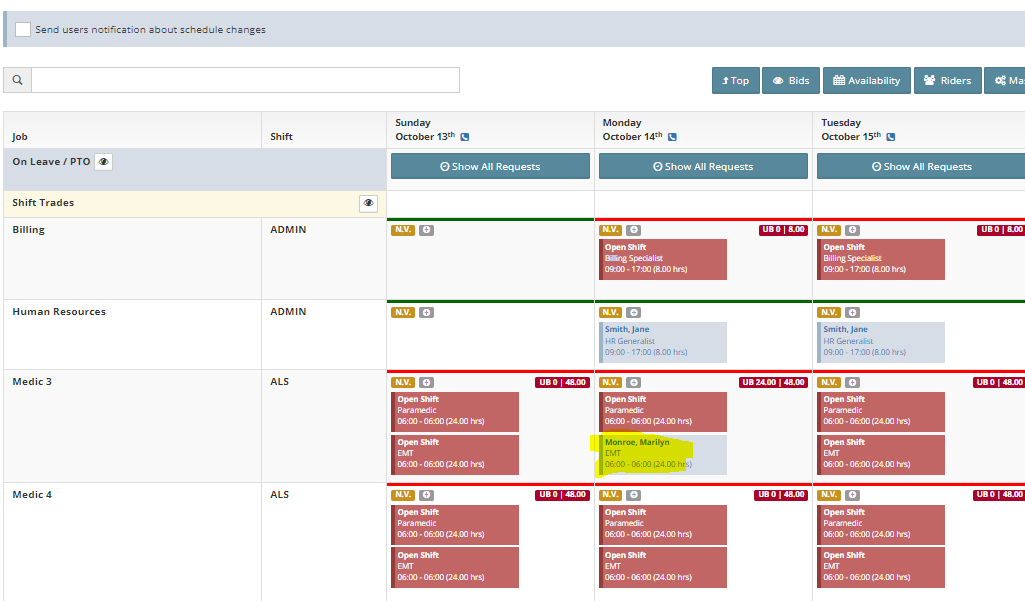
Step 5: Click the employee's slot you wish to interact with
Step 6: From the slot editor you can access the following functions:
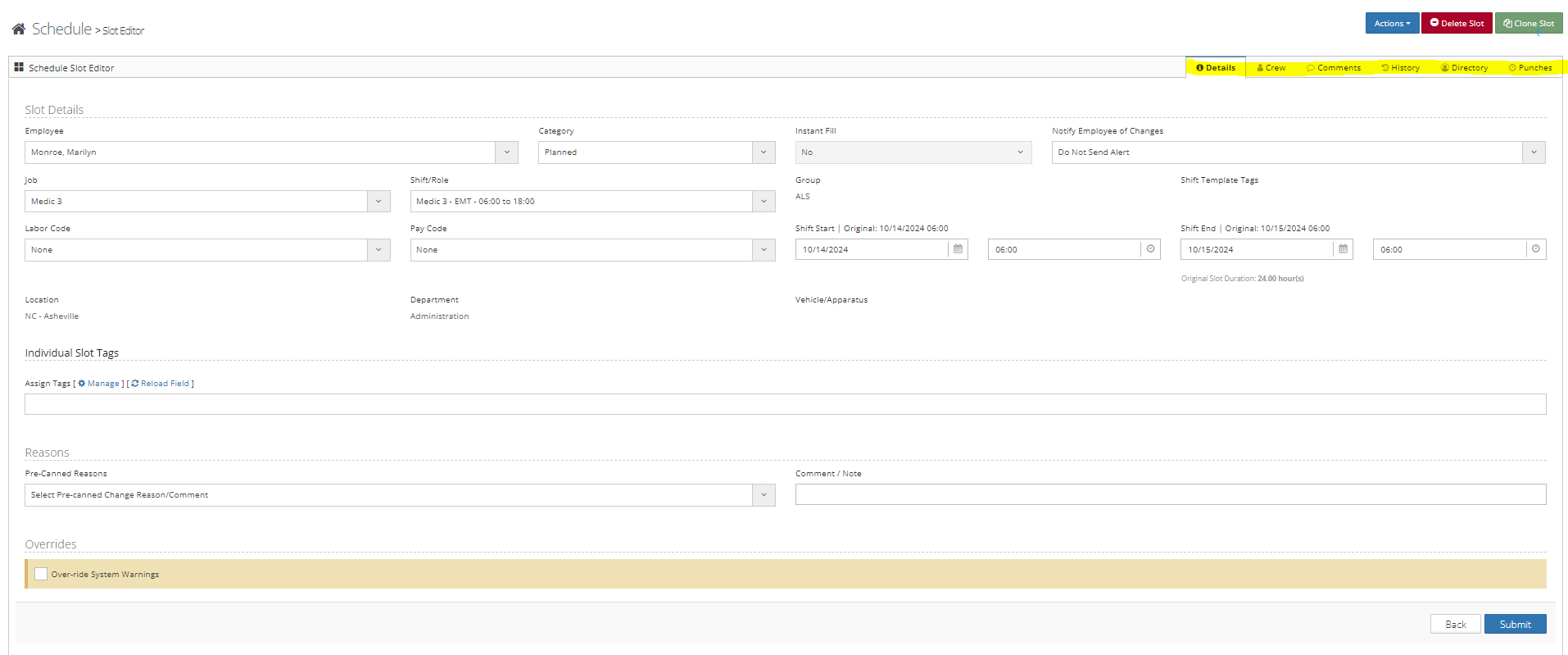
- Details - On this tab, you can make changes to the slot details like work hours, the employee, add Tags and staff role
- Crew - This tab displays the crew members assigned to this unit as well as gives you the ability to contact them
- Comments - On this tab, you can view or add the comment for this slot
- History - Shows all history associated with this slot
- Directory - List all employees' contact information
- Punches - Displays current employee punch
From the actions button, you can do the following:

- Split Slot - Split the slot into separate times
- Candidates - Shows any employee eligible to work this slot
- Availability - Shows employees that have submitted availability for this slot
- Slot Bids - Shows the bids for this slot
- Page Out Slot - Provides an easy way to page out an opening for this slot
- Message Crew - Sends a message to crew members
- Re-Assign - Move the selected employee to a different slot
- Add Time Off - Enter time off for the selected employee
- Spyglass - Opens the selected employee's spyglass editor
- New Slot - Adds a new ad-hoc slot to the schedule