After the shift trade/swap has been initiated and the employee you are swapping with has entered their part you will receive an email and inbox notification to finalize the trade/swap. Follow the steps below to finalize the trade/swap.
Step 1: Log into the VAIRKKO Platform
Step 2: Select 'Schedule' from the in-app menu
Step 3: Select 'Trades/Swaps' under schedule tools
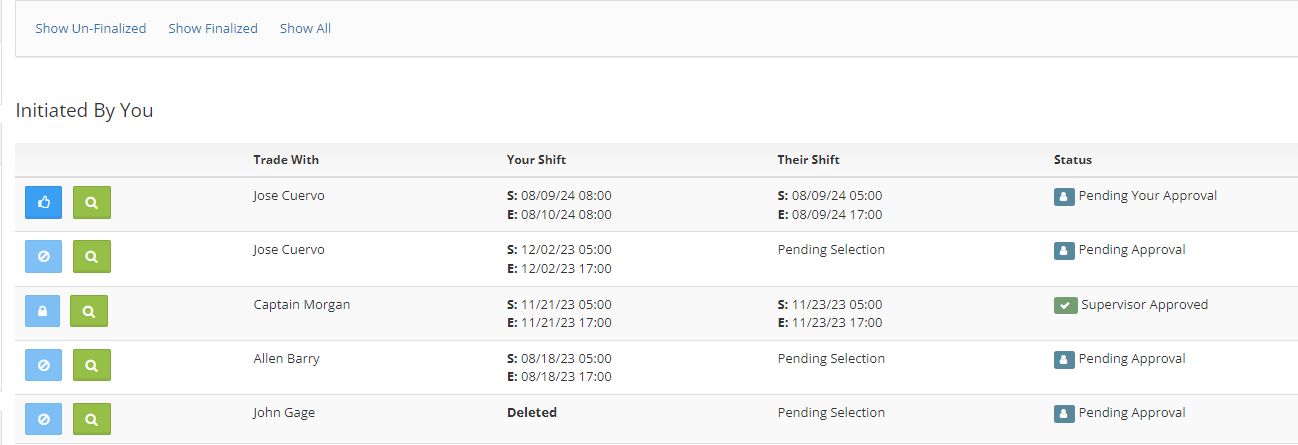
Step 4: Find the swap you are looking for under the 'Initiated By You' section. The thumbs up button access the approve or deny trade/swap function, the magnifying glass allows you to view the details
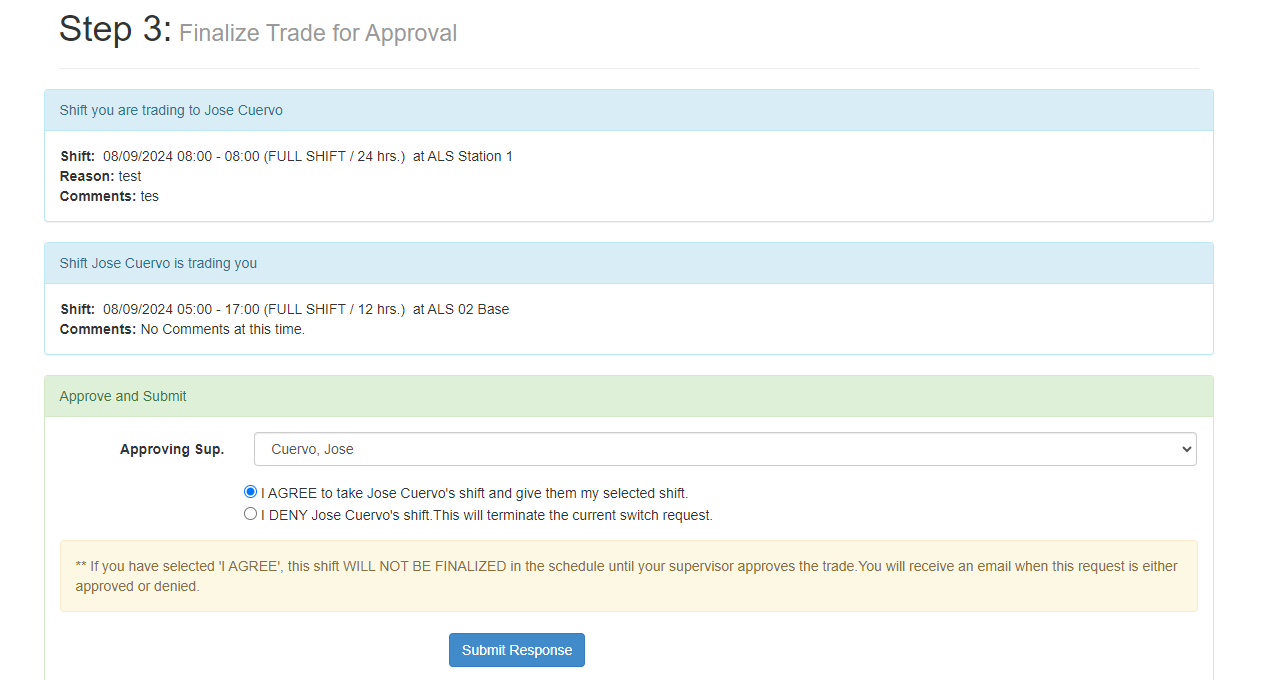
Step 5: After selecting the thumbs up button enter the Supervisor you want to approve the trade/swap and if you agree with the entered information
Additional Information
- If there is not a place to select a supervisor it is because your Agency has decided to auto approve trade/swaps.
Was this article helpful?
That’s Great!
Thank you for your feedback
Sorry! We couldn't be helpful
Thank you for your feedback
Feedback sent
We appreciate your effort and will try to fix the article