Schedules in the VAIRKKO App
Step 1: Check your schedule on the landing page. When you log in, your schedule appears right at the top. If you’re scheduled today, you’ll see a green dot.
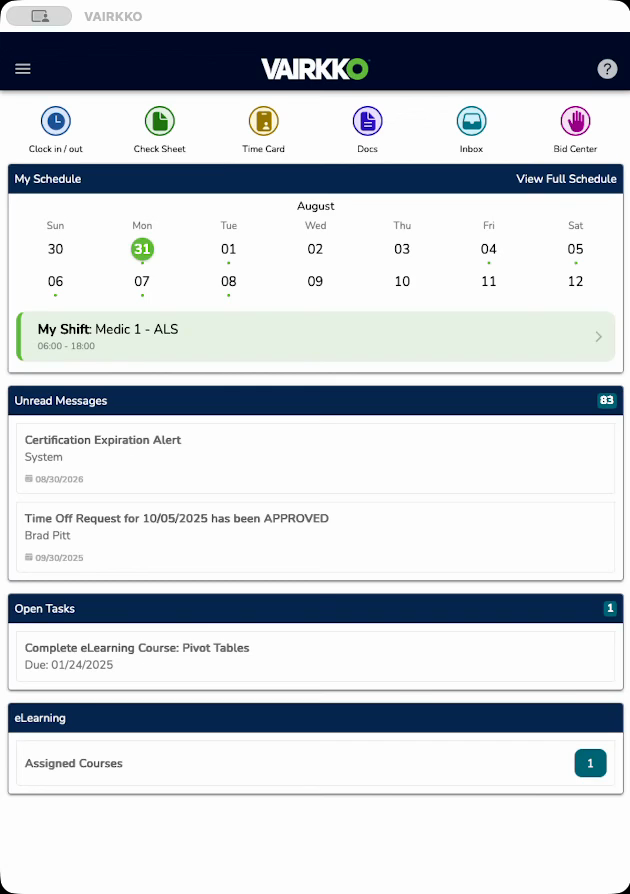
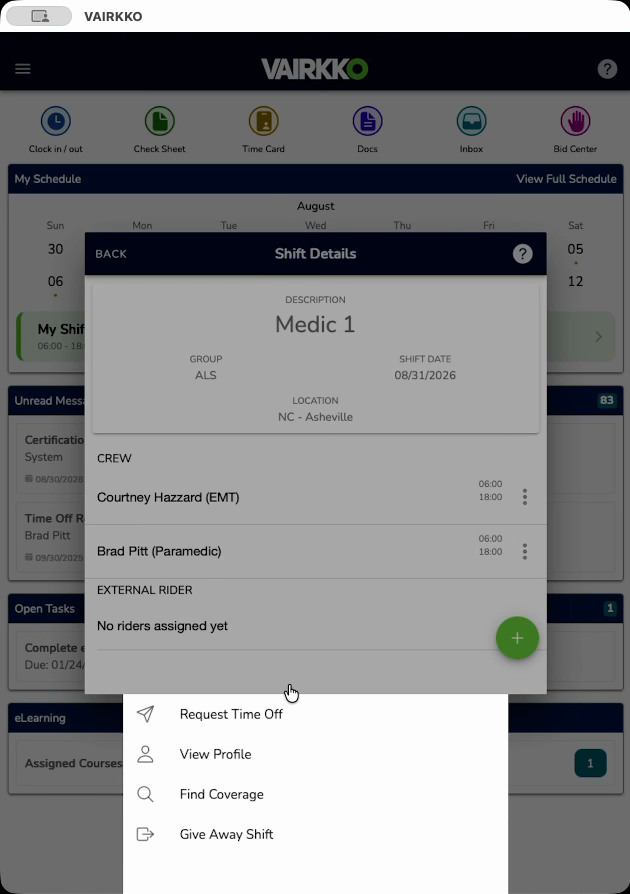
Step 2: Click on your shift to see more details. You’ll find information about your role, shift timings, and coworkers. Use the available options to request time off, find coverage, or give away your shift.
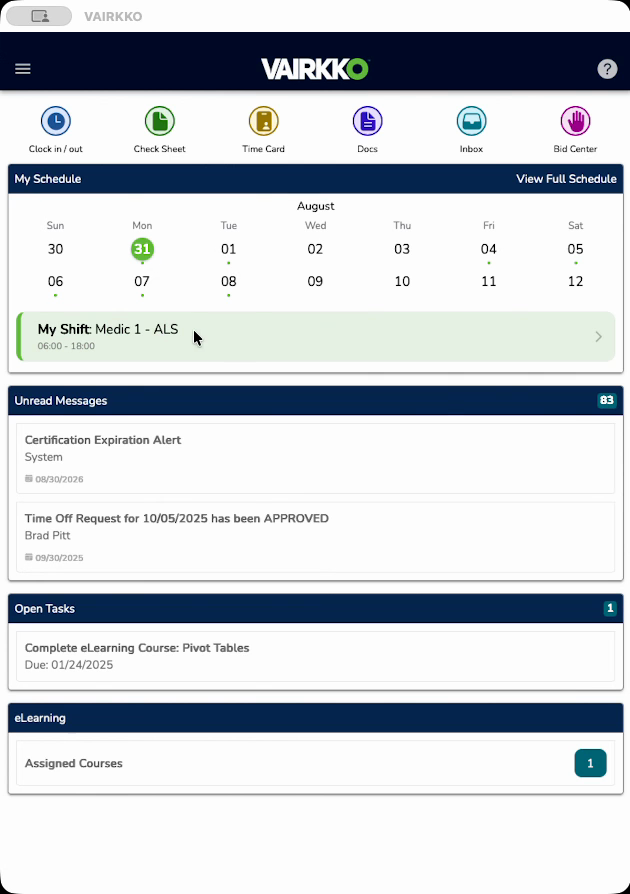
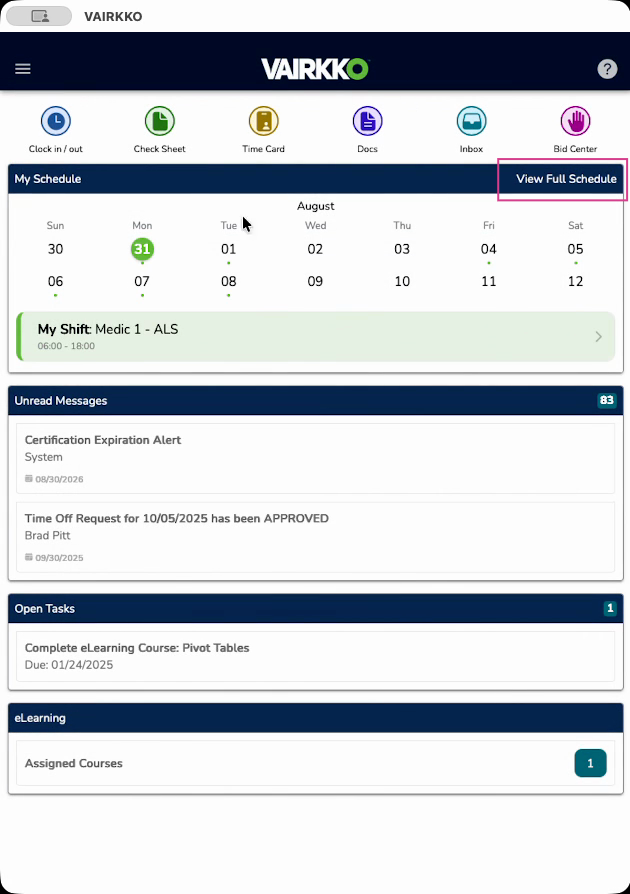
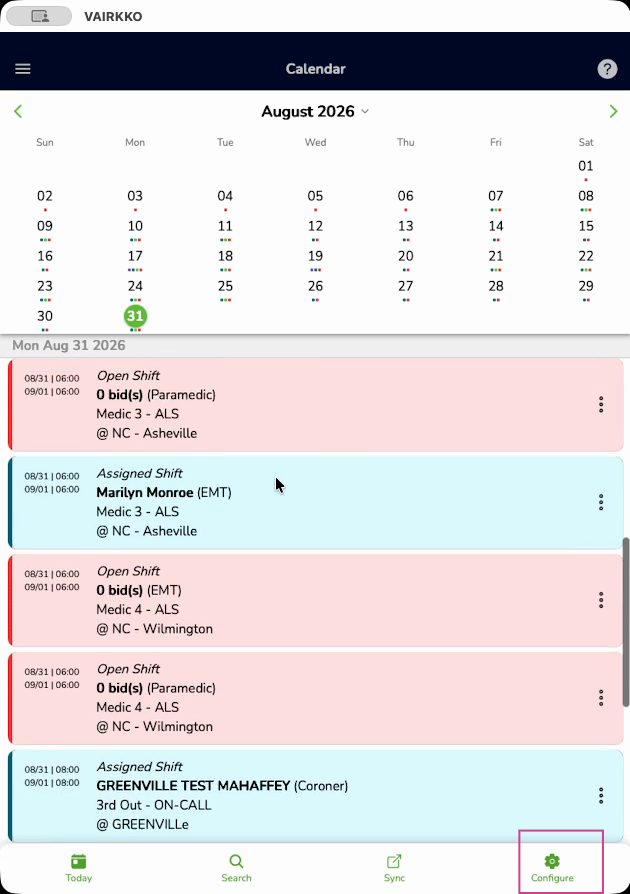
Step 3: Access the full schedule. Click View Full Schedule at the top, or select Calendar under Scheduling from the left sidebar to open all shifts for the chosen day.
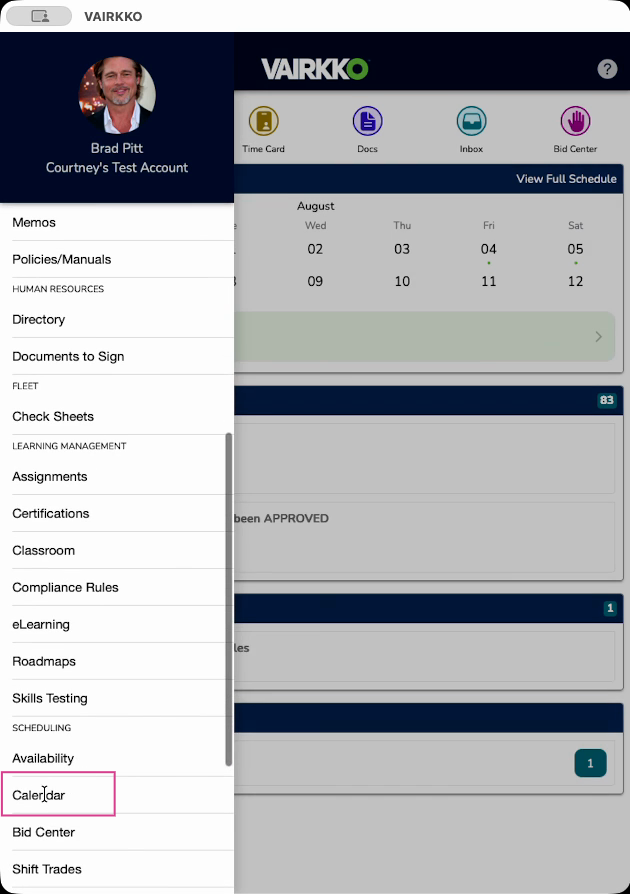
Step 4: Understand the color coding. In the calendar, red means open shifts, blue is filled, and green represents your shifts.
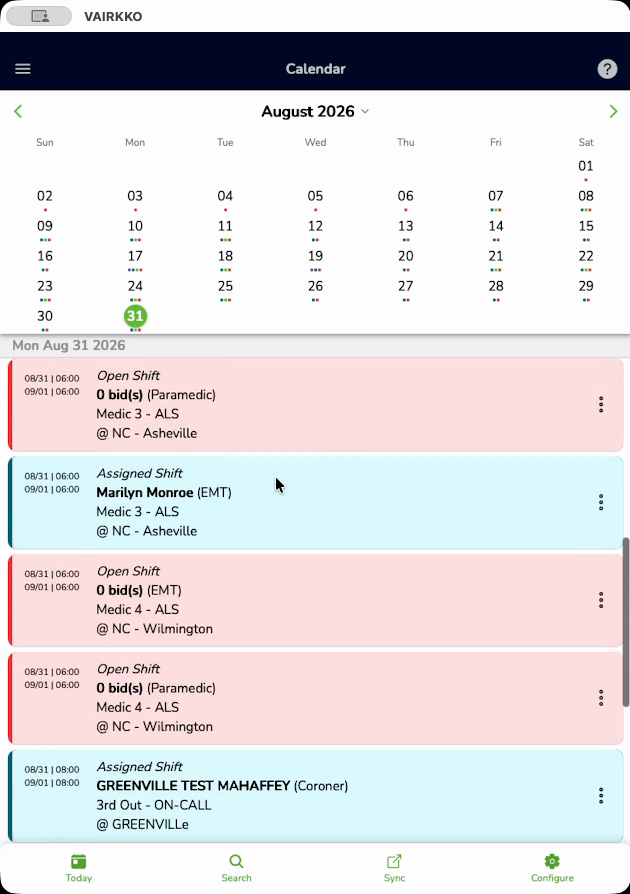
Step 5: Manage your shifts from the schedule view. Tap your shift to request time off, review shift details, or find coverage. For open shifts, view details or place a bid directly.
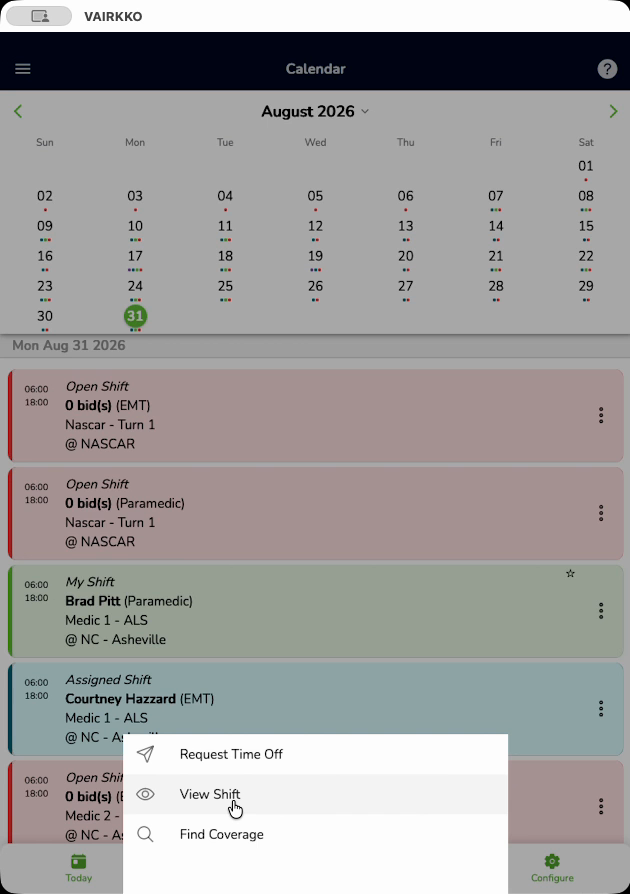
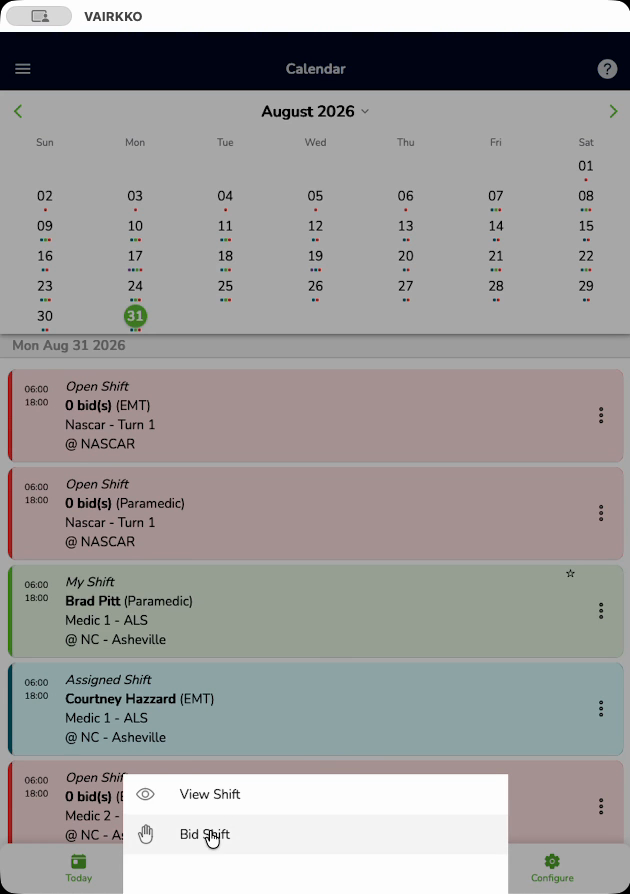
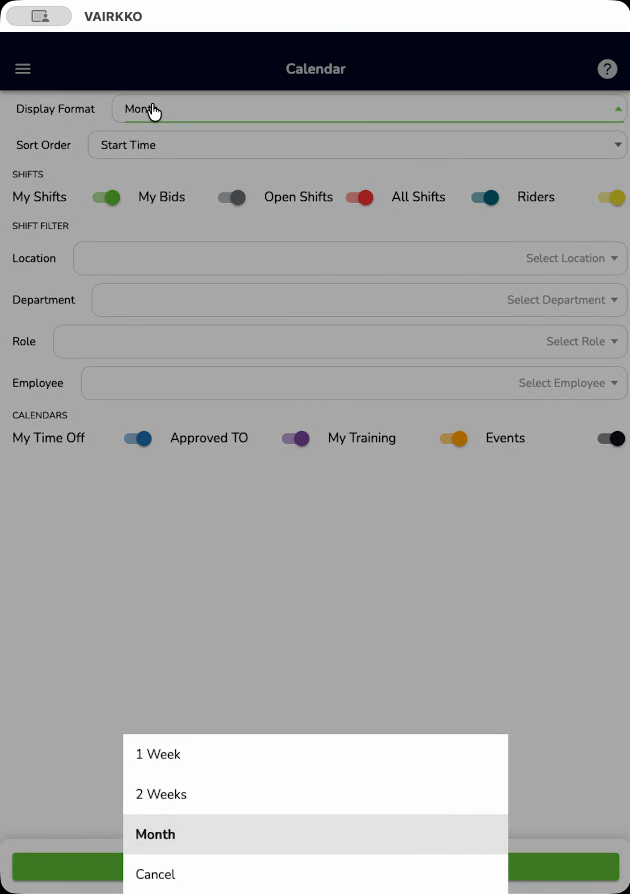
Step 6: Customize your view with filters and layout options. Tap on Configure from the bottom. Select your display format. Sort and filter by location, department, staff role, or employee.
Step 7: Use the Who’s Working Today feature for a quick summary. Find it in the left sidebar for a real-time look at today’s shifts. Upcoming shifts appear in the Upcoming tab, and recently finished shifts show in the Off Duty tab.
Was this article helpful?
That’s Great!
Thank you for your feedback
Sorry! We couldn't be helpful
Thank you for your feedback
Feedback sent
We appreciate your effort and will try to fix the article