Assignments within the VAIRKKO platform gives you the ability to assign various components throughout the system to your users and assign a deadline for completion. Assignments can be created within templates for these features:
- Certifications
- Compliance Rule
- eLearning Course – by track, subtrack, and specific courses.
- Skills Test
- Training Roadmap
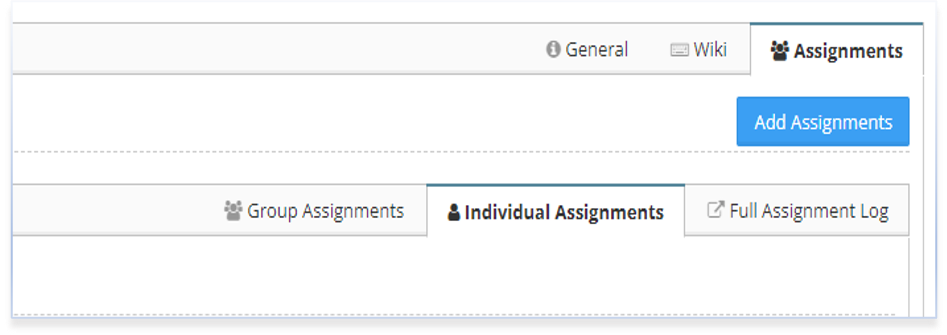
To Get Started – from any template, go to the assignments tab and select “Add Assignments.”
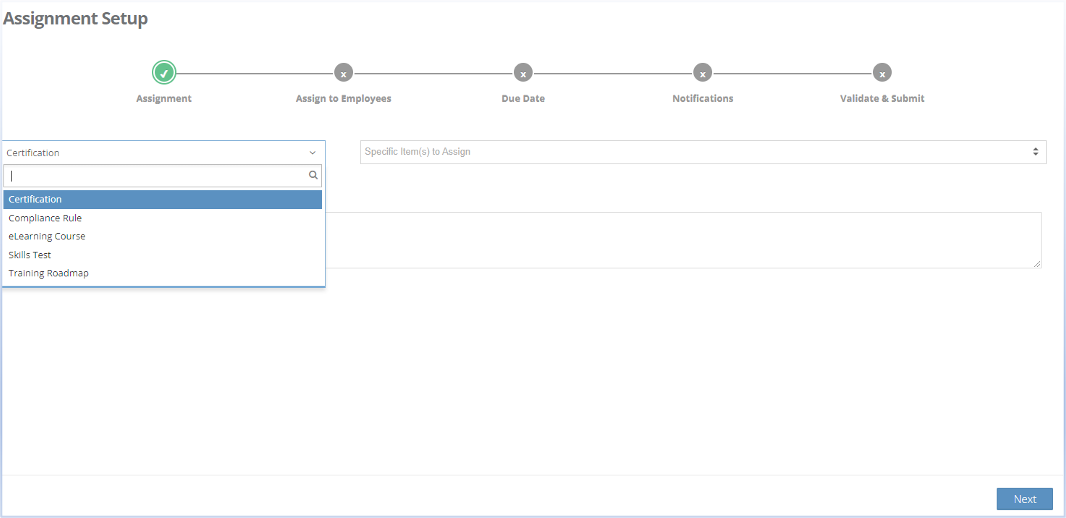
Select the category from the drop-down menu. Select “Next” to move the next step.
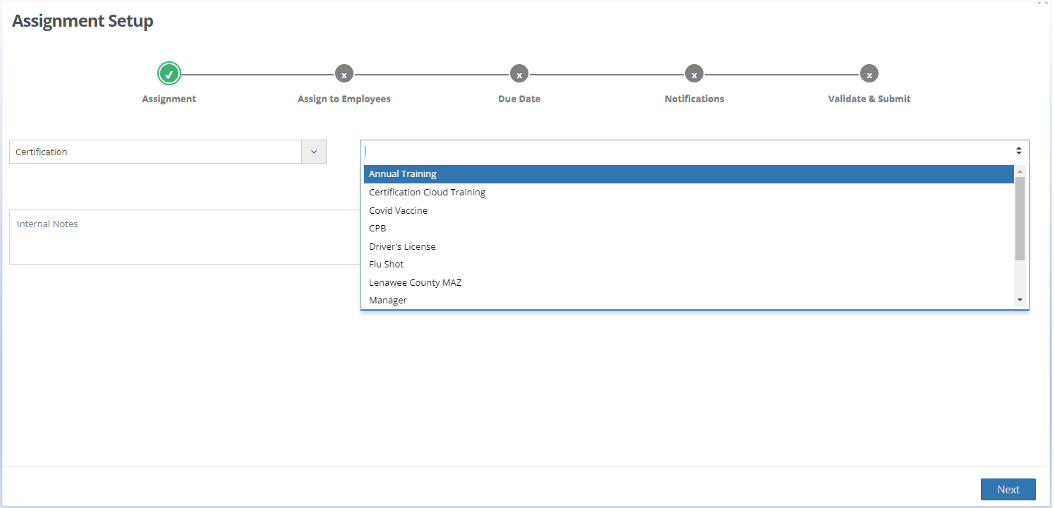
Select the specific components you are assigning – this can be one or multiple at a time. Add any notes if needed. Select “Next” to move the next step.
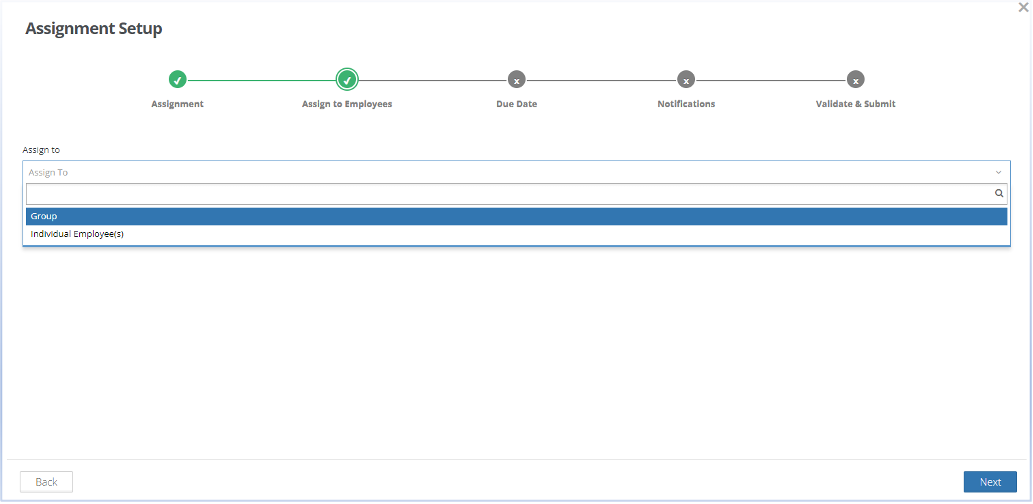
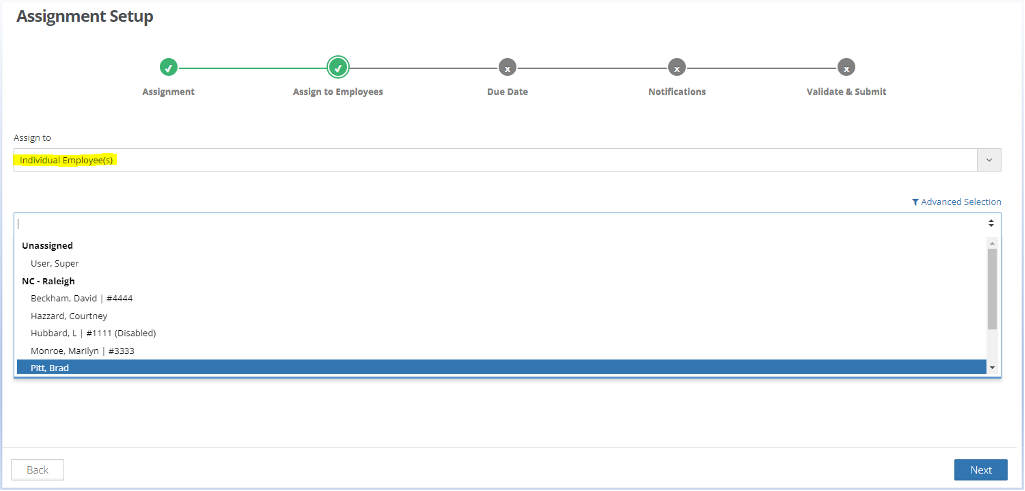
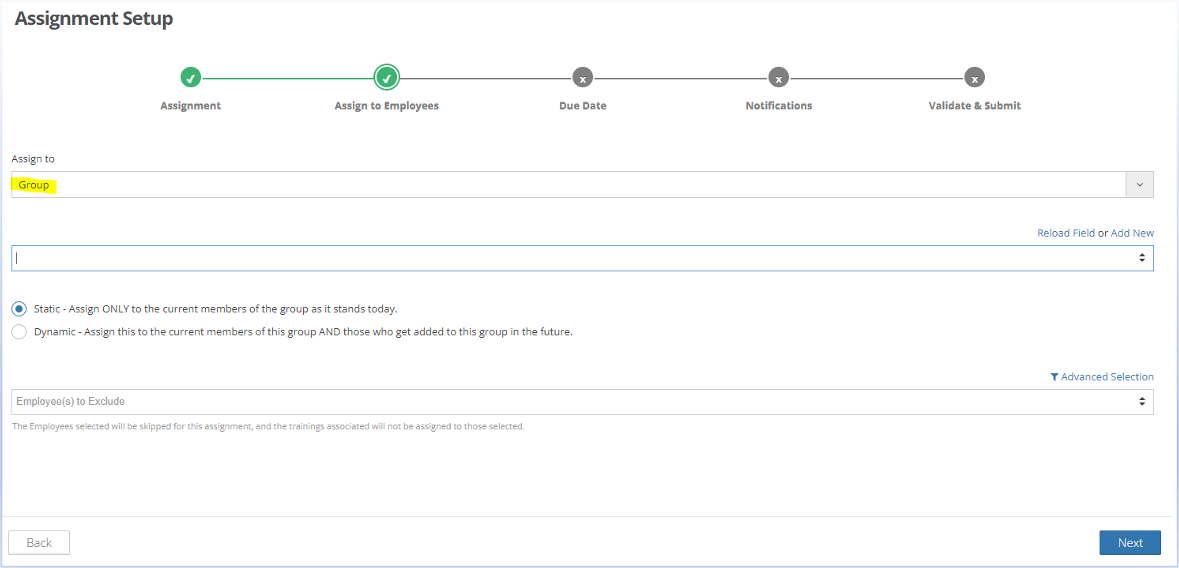
Select the users that will be assigned – either by group(s) or individual(s). Select “Next” to move the next step.
If assigning to individual(s). Select the specific users in the drop down, then select “Next” to move to the next step.
If assigning to group(s). Select the specific group(s) from the drop-down, and if it will be “Static” or “Dynamic”. You can exclude specific users that belong to the selected groups from the assignment as well. Select “Next” to move to the next step.
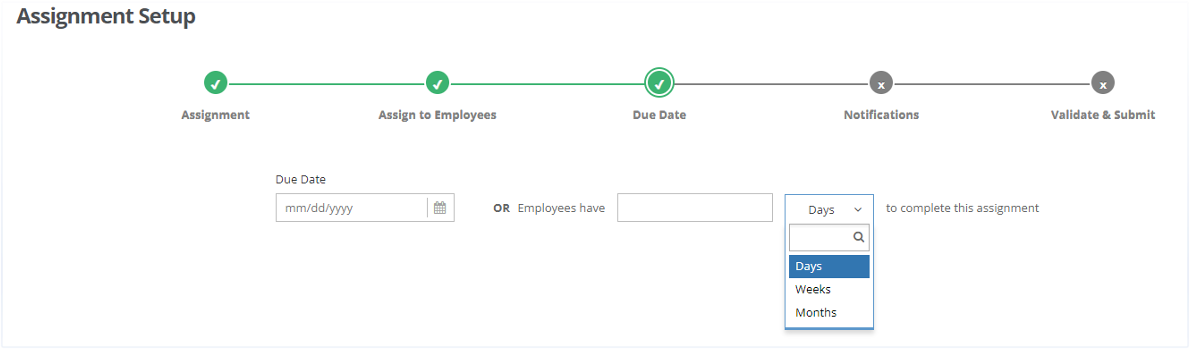
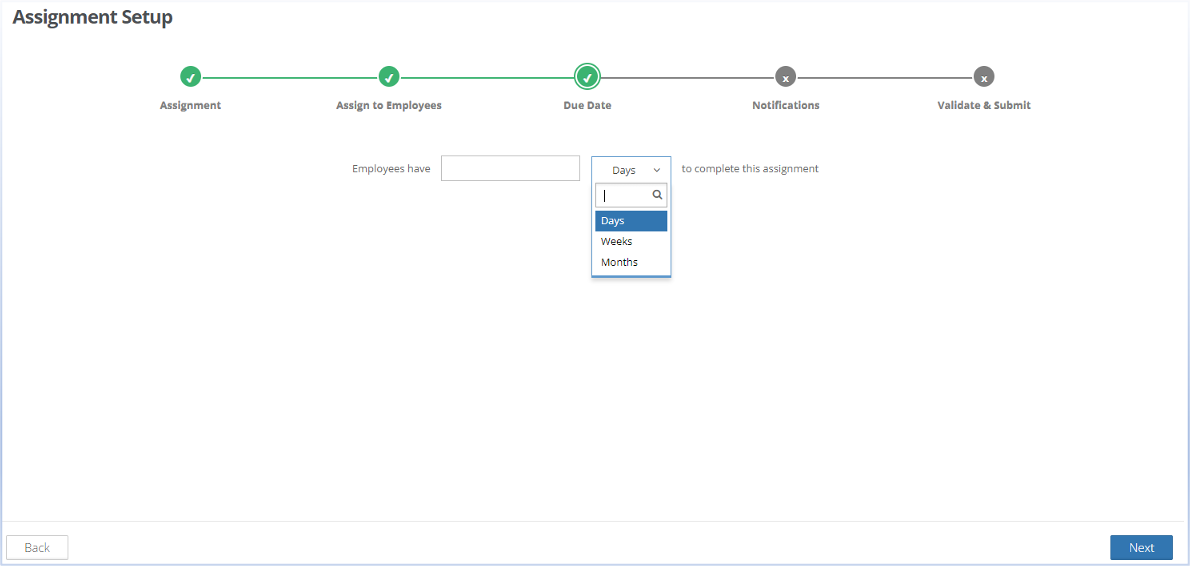
Select a “Due Date” for completion. Then select “Next” to move to the next step.
Select notification preferences for the assignment. For each drop-down you can select one or multiple options. Include any notes or content as well to go out with the selected notifications. Select “Next” to move to the final step.
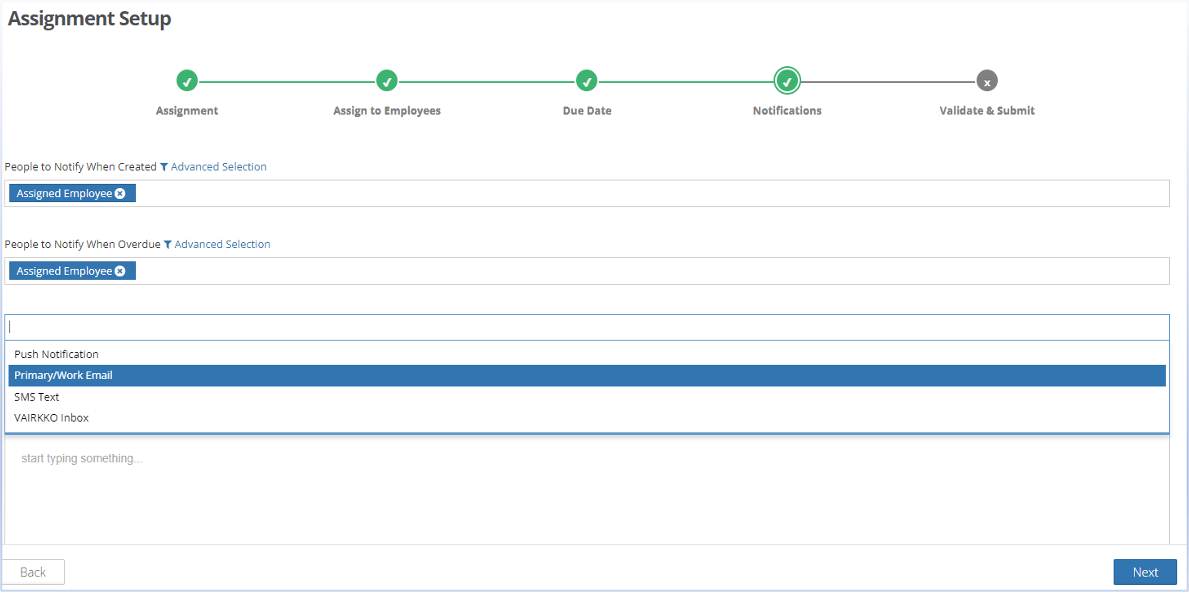
Validate & submit your assignment and select “confirm”.
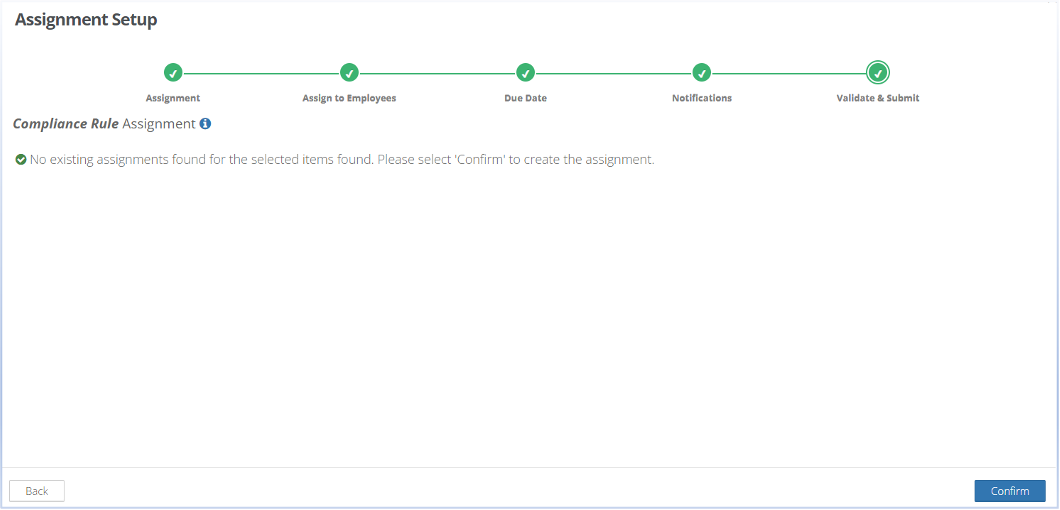
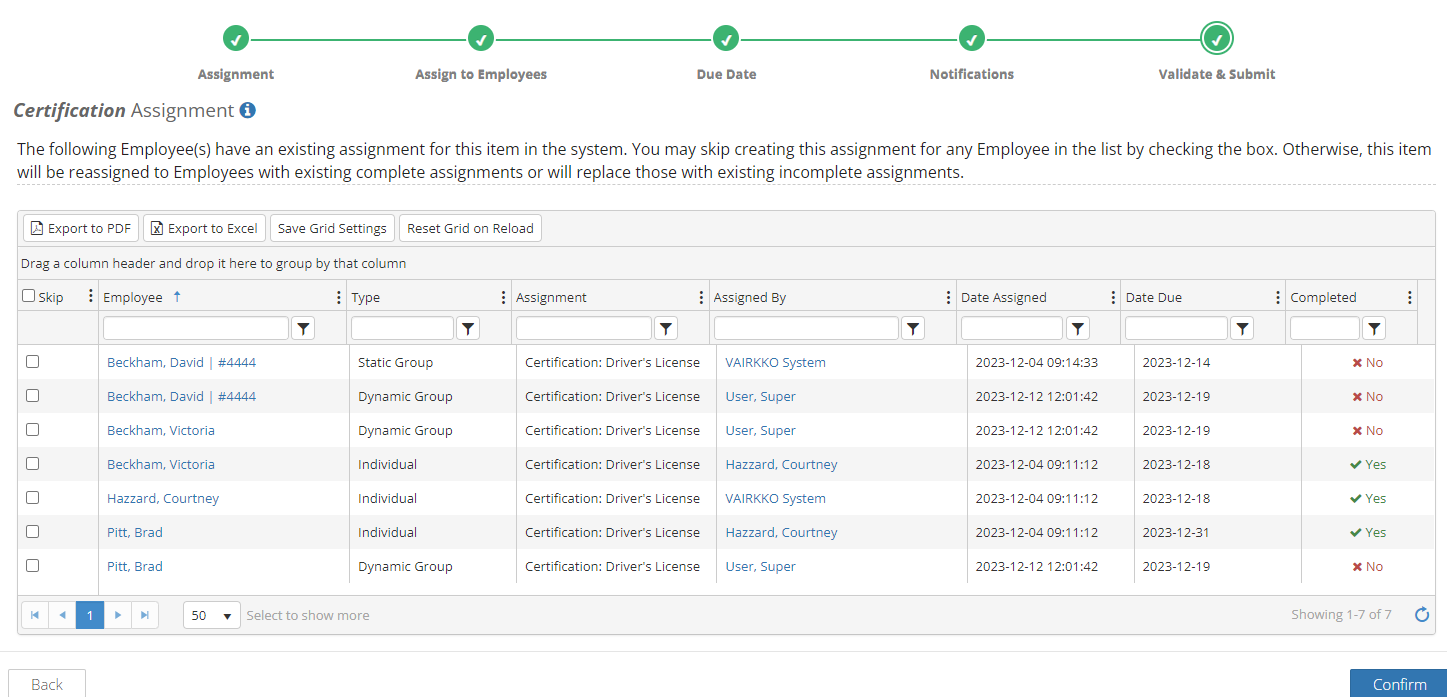
If existing assignments are found within the system. The screen below will display. You can opt to “skip” individuals at this point and exclude them from the assignment.
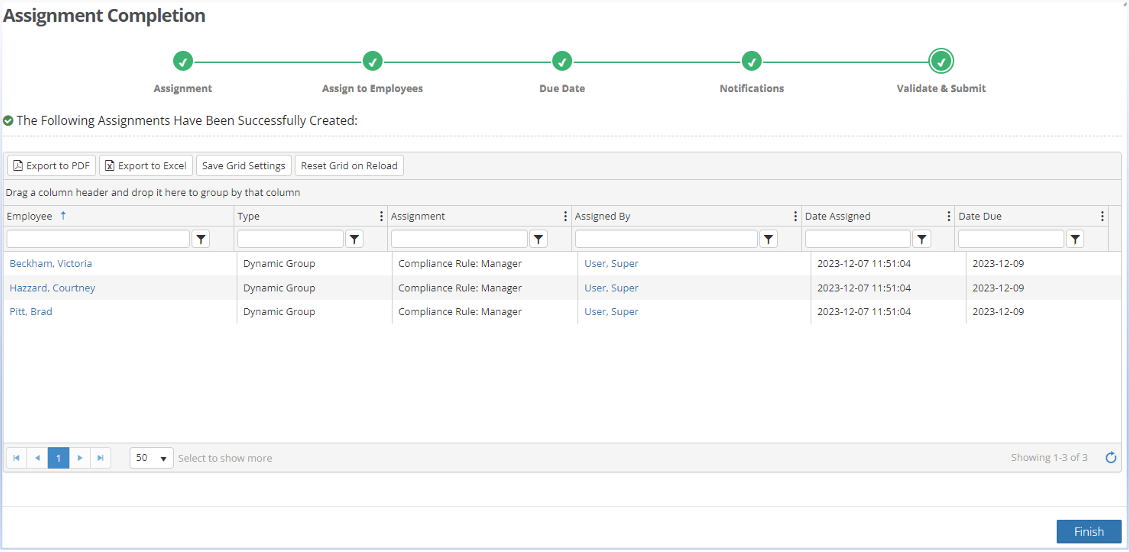
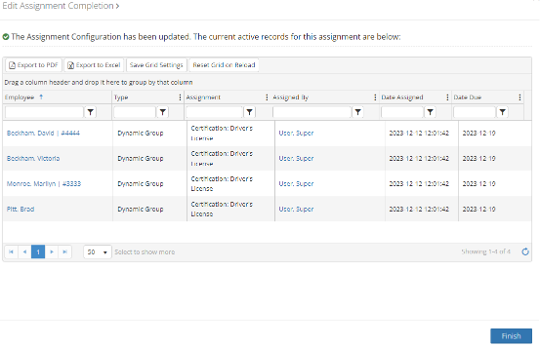
Review the assignments that have been created from your selection process. Then select “Finish” to complete.
Need to view the history, edit, or delete an assignment?
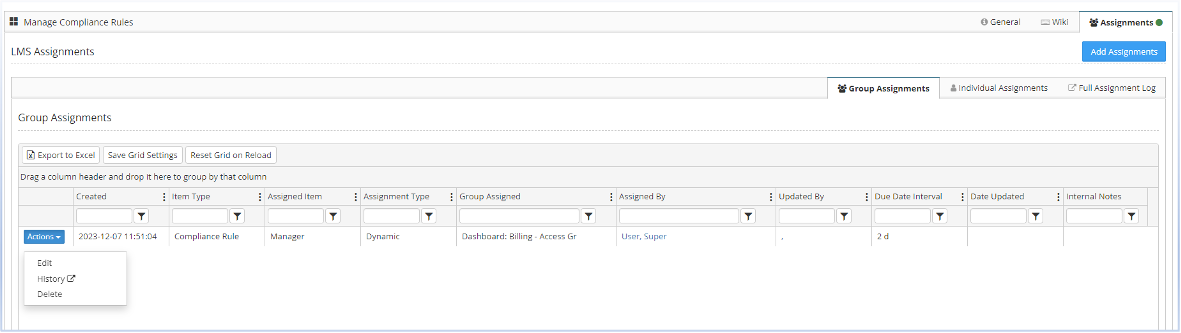
Editing an existing assignment
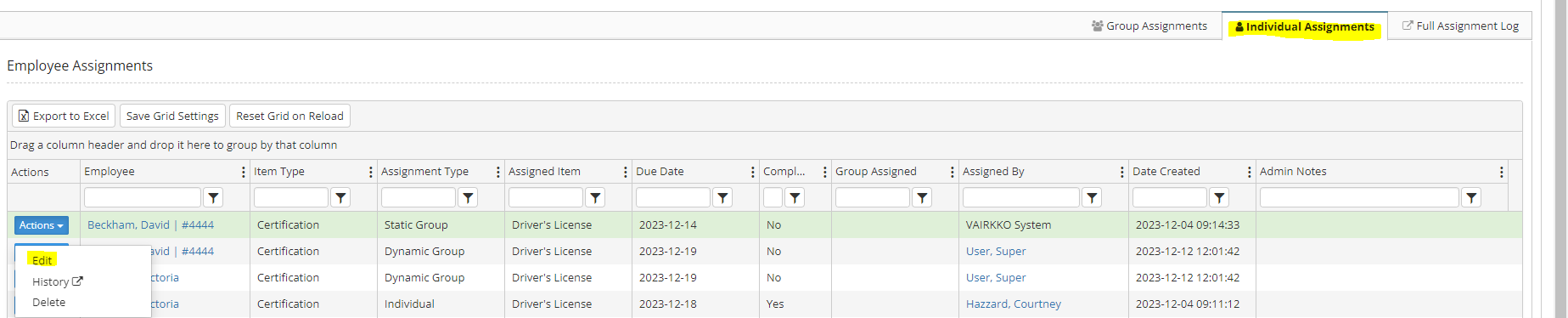
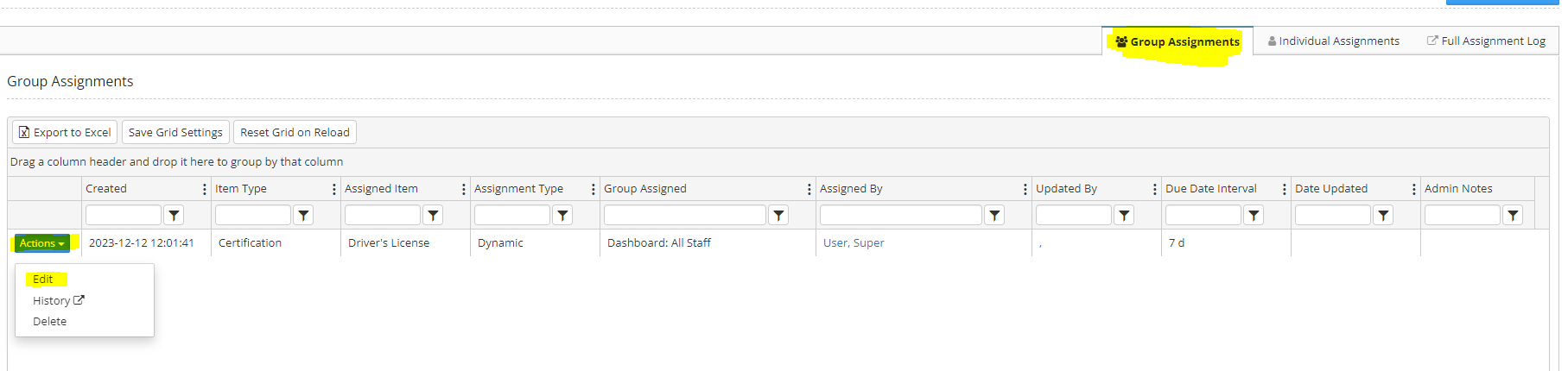
You can edit an existing assignment at any point in time. Use the “actions” button to edit an assignment.
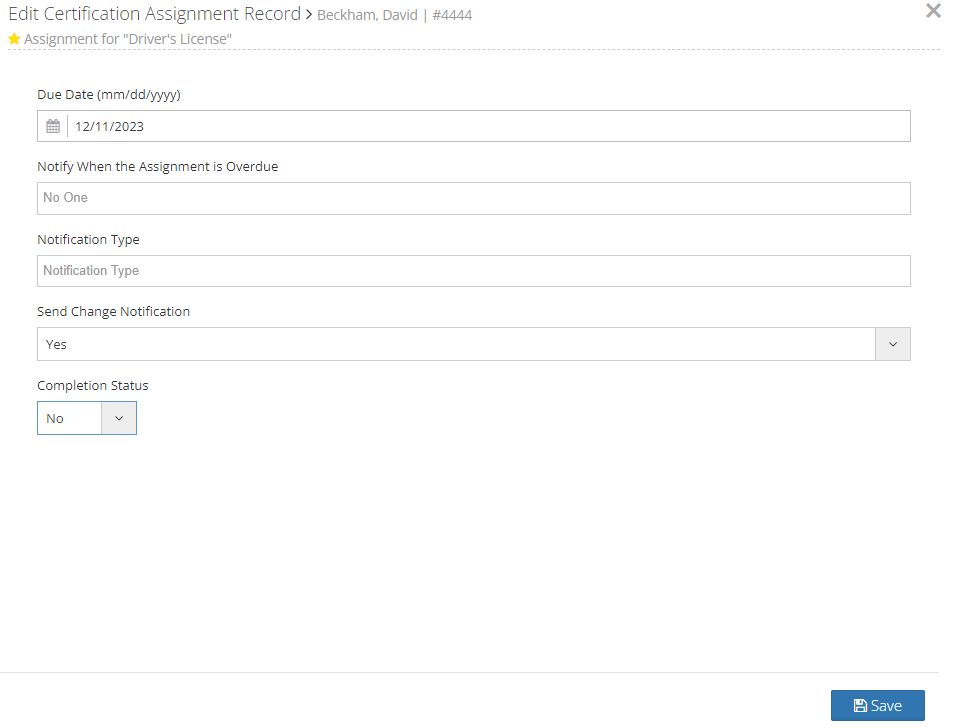
Edit an individual assignment
Edit a group assignment
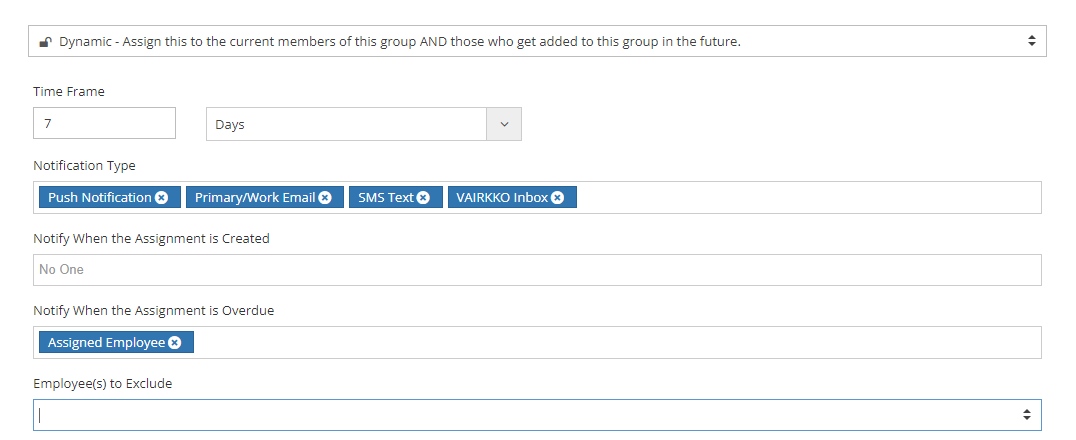
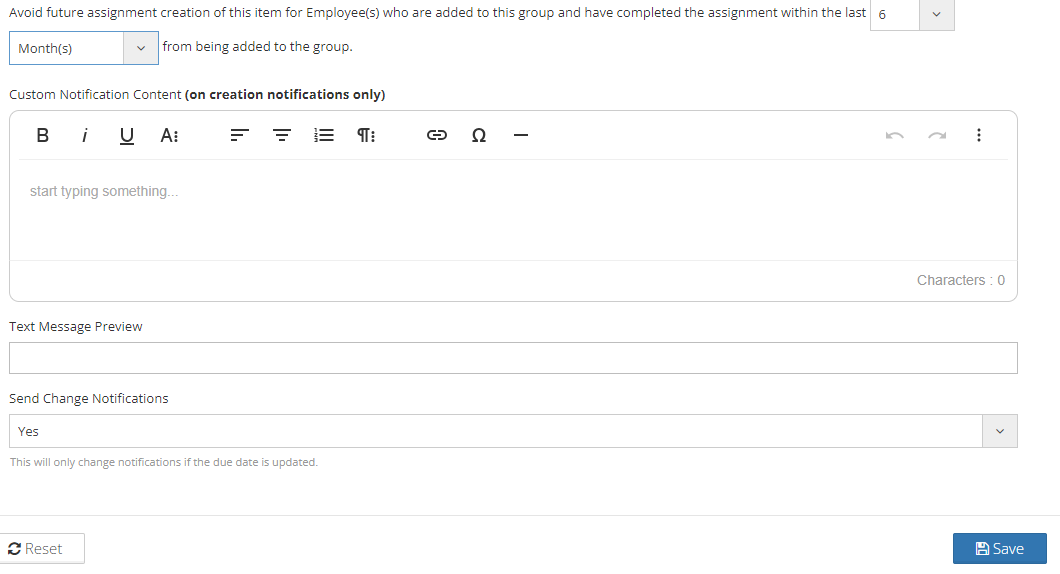
Review the current active records for the assignment and click on “Finish” to complete your edits.
Was this article helpful?
That’s Great!
Thank you for your feedback
Sorry! We couldn't be helpful
Thank you for your feedback
Feedback sent
We appreciate your effort and will try to fix the article