How to Access Course Actions
- Navigate to eLearning Cloud
- Locate your course
- Click the Actions button next to the course
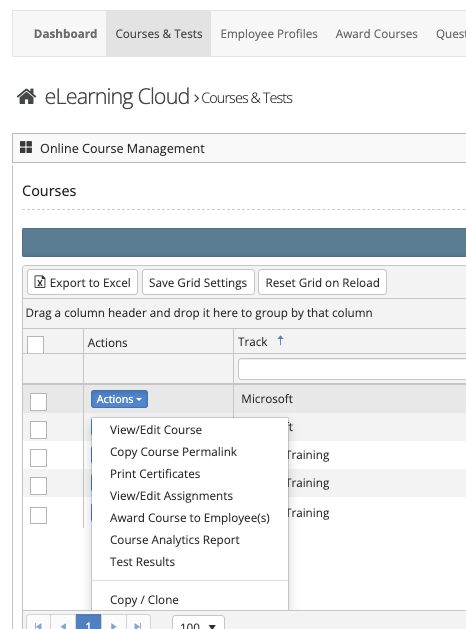
Available Actions
Course Management
- View/Edit Course
Make changes to course details, materials, or settings - Copy/Clone
Create a duplicate of the course - Set as Inactive
Move the course from active to inactive status - Delete Course
Permanently delete the course and all associated records
Assignments & Completion
- Assign This Course
Assign the course to individuals or groups - Award This Course
Mark the course as completed without requiring the employee to take it - Print Certificates
Generate certificates for employees who have completed the course
Testing & Questions
- Mass Edit Questions & Answers
Update all test questions and answers from one screen - Quick Test Review
View a breakdown of all questions and correct answers
Reporting & Analytics
- Course Analytics
View performance data for individual questions - Test Results
Review employee test attempts and results
Additional Tools
- Copy Course Permalink
Generate a direct link to the course
Done
You can now manage, assign, and analyze your courses using the Actions menu.
⚠️ Important
- Deleting a course will remove all associated records
- Use caution when setting courses to inactive or deleting them