The interface settings allow you to determine how administrators and employees interact with the schedule.
Step 1: Log into the VAIRKKO Platform
Step 2: Access the Administrative area by clicking 'ADMIN' in the upper right-hand corner.
Step 3: Access the 'Schedule Setup' from the Administrative Toolbar
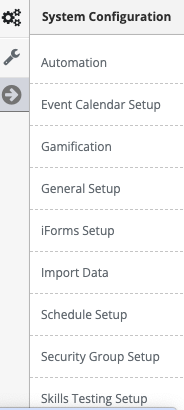
Step 4: 'Interface' from the in-app menu

Step 5: Follow the on-screen prompts to configure the following settings:
- New Schedule Slot Add Method - When adding a new shift to the daily schedule this setting determines if you add 'x' shifts for one day or one shift for 'x' days.
- Add - Hoc Shift Confirmation - When adding an employee to impromptu shift do you want a confirmation request sent to their email and/or cell phone.
- Allow Attendance Event Text - When adding an Attendance Event this will allow or disallow staff to send a text message to the employee's Supervisor.
- Staff May See Company Schedule - This allows you to determine if you want non-administrative personnel to see the company schedule.
- Staff Can Email From Company Schedule - This allows you to determine if you want your staff to be able to email employees directly from the company schedule.
- Display Schedule Label on Company Calendar - Allows you to determine if you want employee schedule labels to be displayed on company calendars.
- Allow Shift Switching - Allows you to decide if you want your employees to be able to swap or switch shifts.
- Allow Shift Give-Aways - This allows you to determine if you will allow you, employees, to give up a previously scheduled shift.
- Allow Shift Bidding - This setting allows you to turn the shift bidding feature on or off.
- Show Shift Tools - This determines if your employees can see the shift tools (Availability, Time Off, Swaps)
- Show Time Card to Employee - Allows employee to see their own time card.
Was this article helpful?
That’s Great!
Thank you for your feedback
Sorry! We couldn't be helpful
Thank you for your feedback
Feedback sent
We appreciate your effort and will try to fix the article