To generate your schedule follow the steps below.
Step 1: Log into the VAIRKKO Platform
Step 2: Access the Administrative area by clicking 'ADMIN' in the upper right-hand corner.
Step 3: Access the 'Schedule Setup' from the Administrative Toolbar
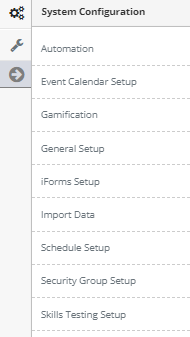
Step 4: 'Configuration' from the in-app menu

Step 5: Select 'Generation & Publishing' from the in-app menu

Step 6: Select the 'Generate' tab
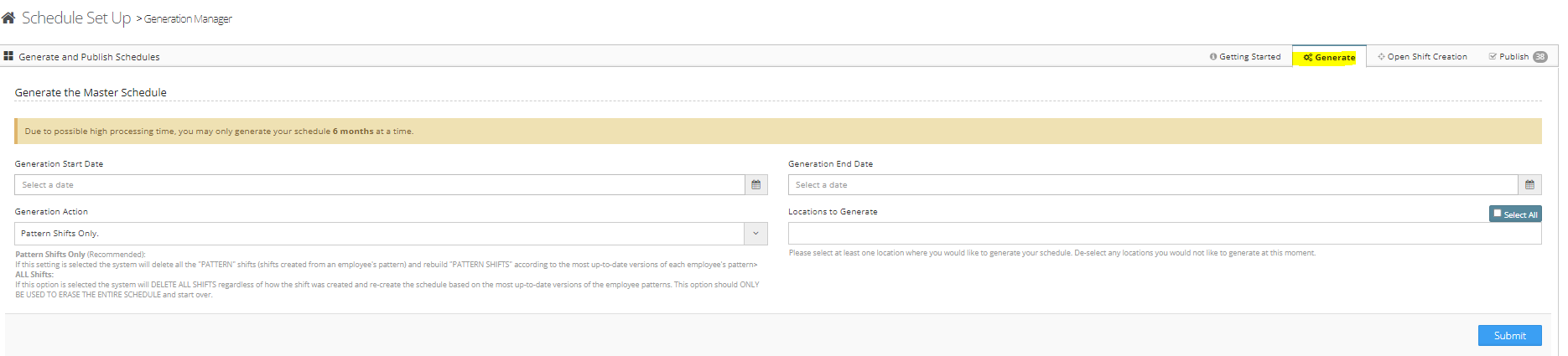
Step 7: Follow the on-screen prompts to generate your schedule. To learn more continue reading below.
Additional Information
Generation Start Date - The date to begin generating the schedule
Generation End Date - The date to end the schedule generation
Generation Actions - Pattern Shift Only or ALL shifts
Locations - Which locations to generate
*** Important Information ***
- The 'Pattern Shifts Only' option will only generate patterns. If you have manually added shifts they will not be affected by this.
- The 'ALL Shifts' option will delete ALL shifts from the schedule and regenerate PATTERN SHIFTS ONLY
- Generate the Location ONLY ONCE per date Range. For example, if Headquarters is generated for the month of July DO NOT generate headquarters again for July
- If a location is regenerated for an already generated date ALL swaps that have been entered for that date range will be REMOVED
- If you create a new location and need to add it to an already generated Schedule generate that location only
- DATA THAT IS OVERWRITTEN BY RE-GENERATING THE SAME LOCATION FOR AN ALREADY GENERATED PERIOD CAN NOT BE RECOVERED
Was this article helpful?
That’s Great!
Thank you for your feedback
Sorry! We couldn't be helpful
Thank you for your feedback
Feedback sent
We appreciate your effort and will try to fix the article