This guide outlines how to create sessions for your classroom training within the Classroom (ILE) Training Cloud.
Navigation Path
Admin > Classroom (ILE) Training Cloud > Sessions > New Sessions
Instructions
Step 1: Log into VAIRKKO
Log into the VAIRKKO platform using your credentials.
Step 2: Access the Admin Area
Click “ADMIN” in the upper right-hand corner of the screen.
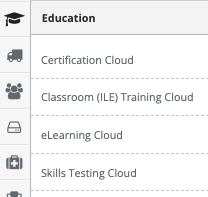
Step 3: Open Classroom (ILE) Training Cloud
From the administrative toolbar, select Classroom (ILE) Training Cloud.
Step 4: Navigate to Sessions
Select “Sessions” from the in-app menu.
Step 5: Create a New Session
Click the “New Sessions” tab, then select the course and start date for the session.
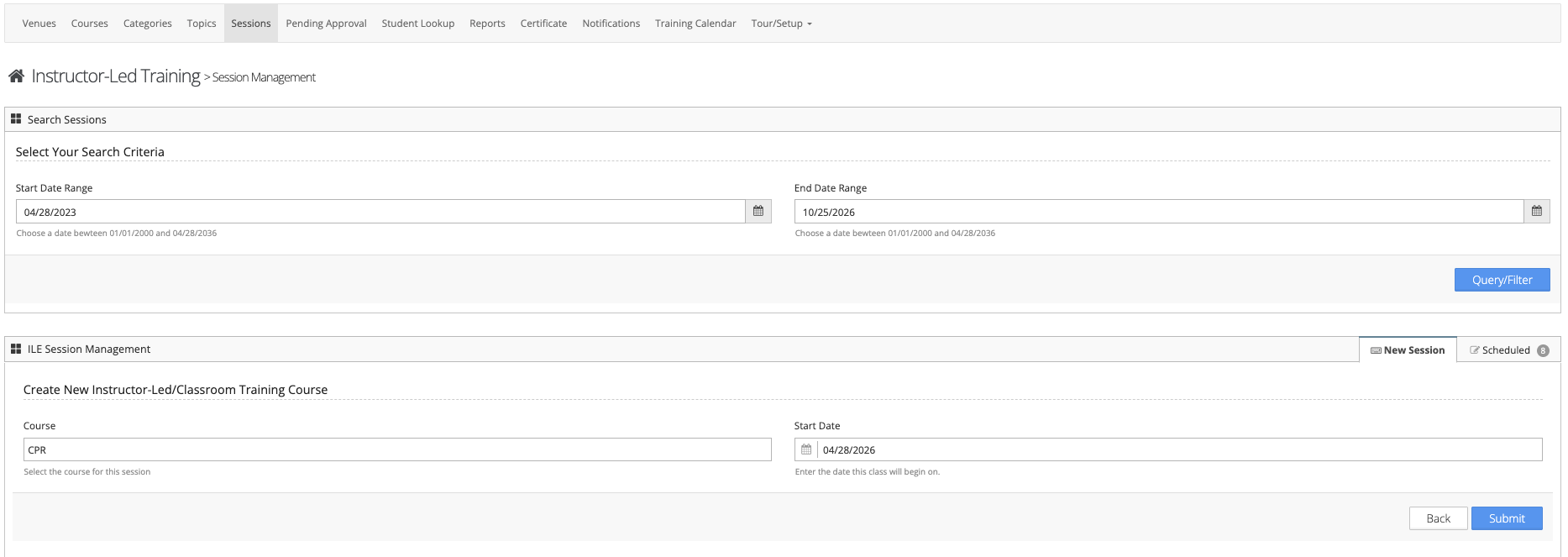
Step 6: Configure Session Details
Follow the on-screen prompts to configure your session settings, including scheduling, registration, and other options.
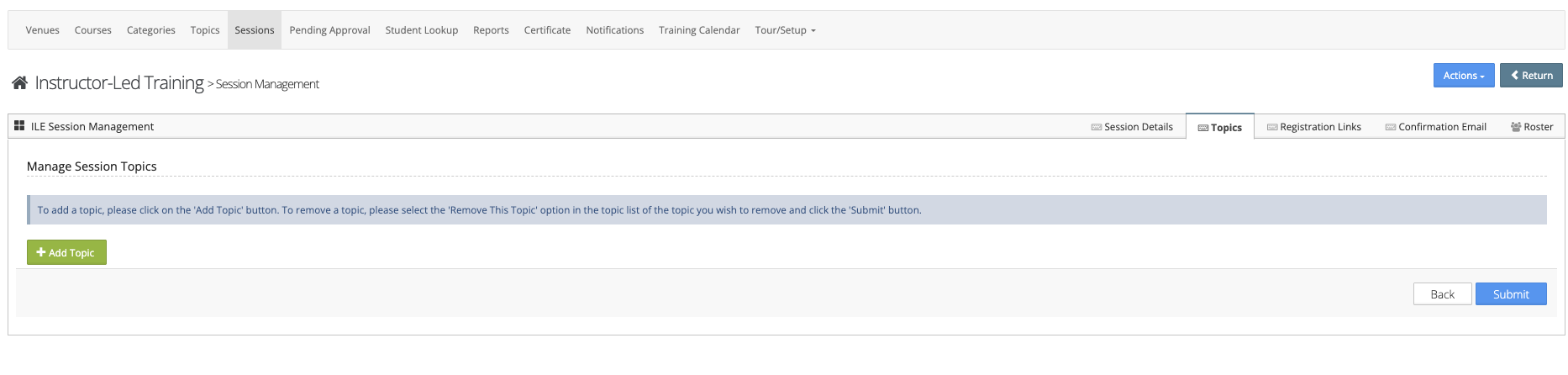
Step 7: Add Topics
Select the “Topics” tab to associate relevant topics with the training session.
Step 8: Save Changes
Click Save to finalize and create your session.
Notes
- Sessions must be linked to an existing course.
- Topics help outline the content covered during the session.
- Ensure all session details are accurate before saving.
Was this article helpful?
That’s Great!
Thank you for your feedback
Sorry! We couldn't be helpful
Thank you for your feedback
Feedback sent
We appreciate your effort and will try to fix the article