Instructor-Guided Courses allow you to deliver eLearning in a live, virtual setting. You can include meeting details (Zoom, Teams, Webex, etc.), schedule a start time, and allow an instructor to control when the test becomes available—without requiring Admin access.
When to Use Instructor-Guided Courses
Use this feature when:
- You want to guide employees through training in real time
- You are hosting a live virtual session or webinar
- You want to control when employees can begin their assessment
How to Set Up an Instructor-Guided Course
Step 1: Access eLearning Cloud
- Log into VAIRKKO
- Go to Admin
- Navigate to:
Education → eLearning Cloud
Step 2: Create or Edit a Course
- Create a new course
OR - Select an existing course and choose:
Actions → View/Edit Course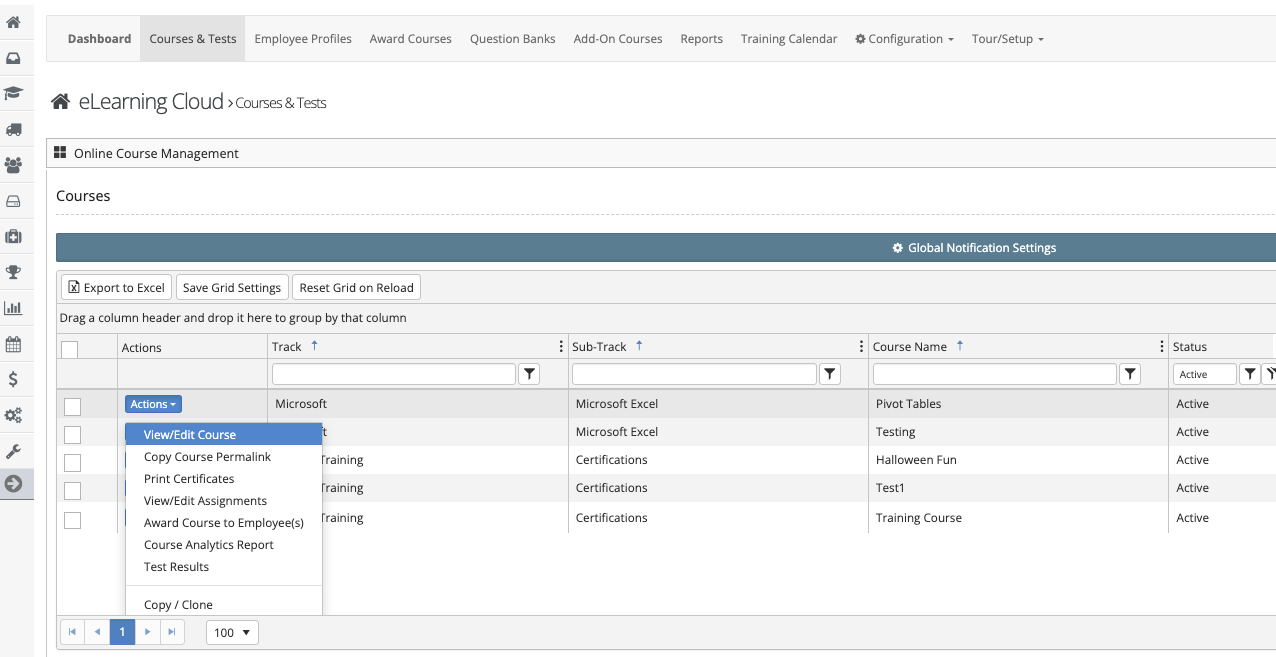
Step 3: Set Course Type
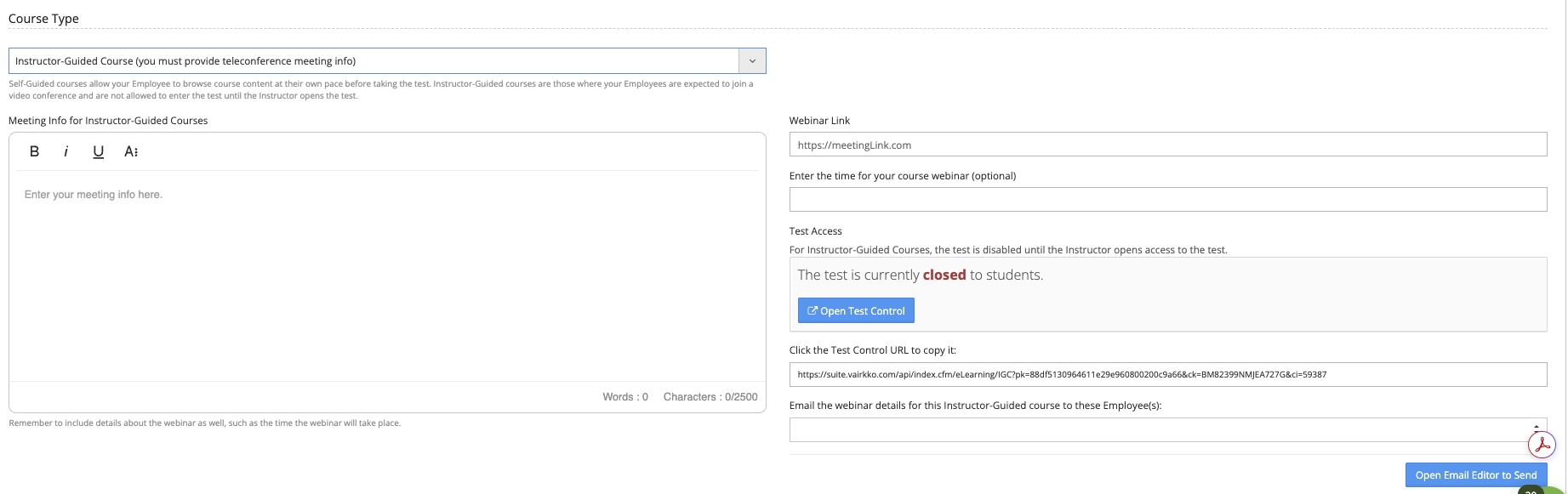
- In the Course Details tab
- Scroll to Course Type
- Select “Instructor-Guided Course”

Step 4: Add Meeting Information
- Paste your meeting details (Zoom, Teams, Webex, etc.) into the Meeting Info field
- Include:
- Meeting link
- Call-in details
- Add the webinar link in the designated field
- Set the start time for the session
Assigning an Instructor (Non-Admin)
If your instructor is not an Admin:
- In the Course Details tab, copy the Test Control URL
- Select instructor(s) in the “Email webinar details…” field
- Click “Open Email Editor to Send”
- Include:
- Test Control URL (allows instructor to open the test)
- Meeting details
- Any additional instructions
Conducting the Course
Step 1: Assign the Course
- Assign the course as you would any other eLearning course
- Include meeting details in the assignment if needed
Step 2: Prepare Employees
Ensure employees know:
- How to join the virtual meeting
- How to access the course:
- Email link
- eLearning LaunchPad
- Instructor-Guided Course section
- What is expected during the session:
- Watch only
- Follow along interactively
Step 3: Run the Session
- Instructor hosts the virtual meeting
- Guides employees through the course
Step 4: Open the Test
For Admins:
- Go to Course Details
- Click Open Test Control
- Select “Open Test to Students”
For Non-Admin Instructors:
- Use the Test Control URL provided
- Open the test from that page
Step 5: Complete the Course
- Employees complete the test
- Results are recorded as with any eLearning course
Was this article helpful?
That’s Great!
Thank you for your feedback
Sorry! We couldn't be helpful
Thank you for your feedback
Feedback sent
We appreciate your effort and will try to fix the article